
Ta strona nie jest jeszcze przetłumaczona i jest wyświetlana po angielsku.
Symbols
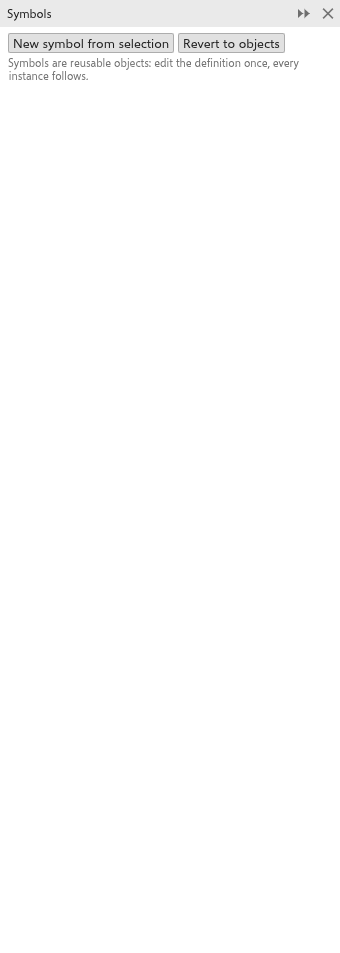
A symbol is an object you define once and place many times. Each copy, called an instance, is a link to the definition: edit the definition and every instance changes. Symbols keep files small and repeated parts the same. They are listed in the Symbols panel (Ctrl+F3).
Making a symbol
- Select the objects that make up the symbol.
- Click New symbol from selection in the Symbols panel, or choose Object > Symbol > New Symbol or Object > Create > Symbol.
The selection becomes the first instance of the new symbol.
Placing instances
The panel lists the symbols of the drawing, each with the number of its instances. Click Insert beside a symbol to place a new instance, or choose Object > Symbol > Insert Symbol. Instances can be moved, scaled and turned like any object.
An instance copied in one drawing and pasted in another brings its symbol along (and the symbols it shows), so it shows the same objects there. Pasting again reuses the symbol already brought.
Editing a symbol
Click Edit beside a symbol in the panel, choose Edit Symbol on the right-click menu of an instance or Object > Symbol > Edit Symbol, or double-click an instance with the Pick tool. The symbol's objects come onto the page where that instance shows them and the rest of the page fades: move, reshape, recolour, add or delete objects as usual. Click Finish on the bar at the top left of the drawing window, choose Object > Symbol > Finish Editing Symbol, or press Esc with nothing selected: every instance shows the change. Undo steps back through the edit as through any other.
A symbol cannot hold an instance of itself; Finish says so and the edit goes on until that instance is removed.
Turning instances back into objects
Select instances and click Revert to objects, or choose Object > Symbol > Revert to Objects. They become ordinary objects that no longer follow the symbol.