
Ta strona nie jest jeszcze przetłumaczona i jest wyświetlana po angielsku.
The Properties panel
The Properties panel (Alt+Enter) shows and changes the properties of the selected objects: their outline, fill, transparency and more, depending on what is selected. It is open at first, beside Hints and Objects. Open it again with Object > Properties.
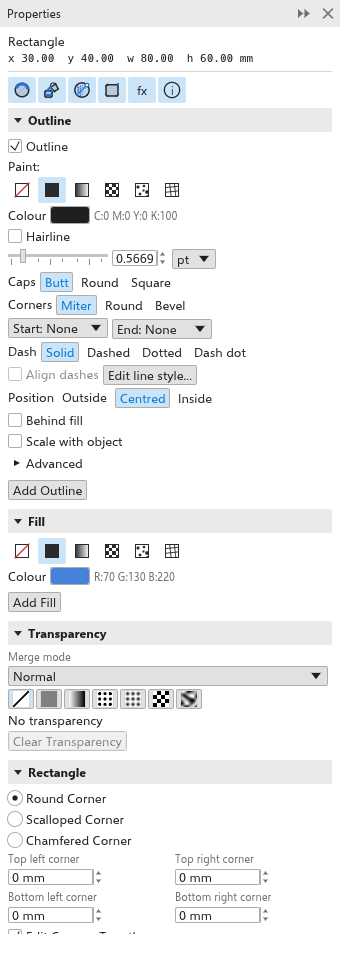
With objects selected
The top of the panel names the selected object (and how many more are selected) and gives its position and size; for one closed object (a rectangle, ellipse, polygon or closed curve) also its Area, holes taken out, in the drawing unit squared. Under it, a row of buttons opens and closes each section the object has:
- QR code, for a QR code: its content and look; see Barcodes and QR codes.
- Outline: color, width, paint, caps, corners, dashes, arrowheads and more; see Setting outlines.
- Fill: the kind of fill and its settings; see Fills. F11 opens this section.
- Transparency: how much of what lies below shows through; see Transparency.
- Rectangle, for rectangles: the corner settings; see Corners.
- FX: the bitmap effects applied to the object; see Bitmap effects.
- Character, for text: the font, size, Bold and Italic, and a button to Edit with the Text tool (F8).
- Summary: a summary of the object.
The sections you closed stay closed the next time. A change applies to every selected object and is one undo step.
With nothing selected
With nothing selected, the panel says No objects selected and shows the Default properties for new objects: the fill and outline that new shapes and lines get. Change them here to draw with other colors from the start. See Object styles and defaults.