
Ta strona nie jest jeszcze przetłumaczona i jest wyświetlana po angielsku.
Making copies with Repeat Copies
The Repeat Copies panel makes several copies of the selection, each moved by the same distance from the one before: a row of buttons, a column of lines, a grid of tiles. Open it with Edit > Repeat Copies (Ctrl+Shift+D).
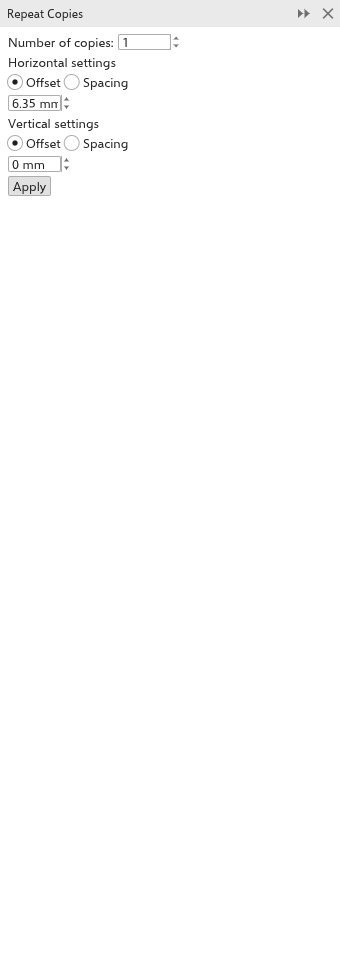
To make copies
- Select the objects to copy.
- Set the number of Number of copies (1 to 999).
- Under Horizontal settings, choose how the copies are spaced across:
- Offset: the distance from one copy to the next, measured from the same point of each;
- Spacing: the gap between one copy and the next, so the copies never overlap whatever their size.
Then type the distance. 0 keeps the copies in line. Choose Right or Left for the way the copies go.
- Do the same under Vertical settings, with Down or Up.
Untick the horizontal or the vertical settings to make copies along the other direction only: a row across, or a column up or down.
- Click Apply.
While you work in the panel (the pointer is on it, you are typing in one of its fields, or your last click was in it) the copies Apply would make are outlined on the page, dashed in blue, and follow each value as you change it. Nothing is added until you click Apply, and one Undo takes all the copies away again. A click elsewhere, or closing or hiding the panel, takes the outlines away. Very many copies of a detailed object are outlined as their boxes.
The copies are added to the active layer and selected. Distances are in the drawing units.
The values stay as you typed them: after an Apply (the copies it made are selected) and for the next objects you select, the panel keeps the same number of copies, distances and modes until you change them. With nothing selected the fields wait, keeping their values. A new session starts from one copy, 6.35 mm across and 0 down.
To fill the page
Fill page tiles the selection over the page in a grid, as many copies as fit: labels, stickers, business cards and tags printed together on one sheet.
- Select the object (or objects) to repeat.
- At the top of the panel choose Fill page. The panel shows the page size.
- Choose to fill the Page, or an Area of it set by its left and bottom edge, width and height.
- Set the Margins kept clear inside the edges (one value for all sides, or clear Same for all to set each side), and the Gap between the copies (one value, or Across and Down).
- For staggered rows, set Shift alternate rows.
- Under Orientation, each choice shows how many copies fit, for example "4 x 6 = 24 copies". Choose As it stands, Turned 90°, or Whichever fits more.
- Tick Trim marks for marks at every cut line outside the copies, and set their length and distance.
- Click Apply.
The selection moves to the first place of the grid and copies fill the others, centred in the room inside the margins; one Undo puts everything back. While you work in the panel, every place is outlined on the page.
To copy with a rotation or a scale at each step, use the Copies field of the Transformations panel; see Moving, scaling, rotating and skewing.