
Ta strona nie jest jeszcze przetłumaczona i jest wyświetlana po angielsku.
Undoing, zooming and panning
You can undo any change, and look at your drawing at any zoom level and from any position. Zooming and panning never change the drawing.
Undoing and redoing
- Edit > Undo (Ctrl+Z) takes back the last change; Redo (Ctrl+Shift+Z) does it again.
- The arrows beside Undo and Redo on the standard toolbar list the steps. Choose a step to undo or redo every change up to it.
- Repeat applies the last command again, for example to the next object you select. A move, resize or rotation is repeated about the selected object's own centre, side or corner, so the object turns or grows where it is instead of moving away.
The Undo panel
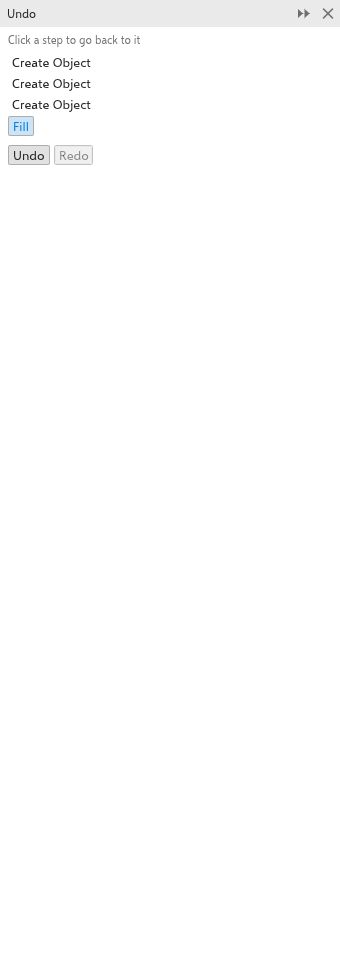
The Undo panel lists every change of the drawing, oldest first. Click a step to take the drawing back to how it was after that step; click a later step to go forward again. Open it from Window > Panels.
Zooming
- Turn the mouse wheel to zoom in or out about the pointer.
- Use the zoom box on the standard toolbar: type a level, or choose one from its list (10% to 1600%), or zoom to the selection, all objects, the page, the page width or the page height.
- View > Zoom In and Zoom Out zoom one step; Zoom To Fit (F4) shows all objects, Zoom To Page (Shift+F4) the page and Zoom To Selected (Shift+F2) the selection.
- A trackpad pinch zooms, and on a touch screen two fingers pan and pinch with any tool.
The Zoom tool
Choose the Zoom tool (Z or F2), then:
- click to zoom in by two at that point;
- Shift+click or right-click to zoom out by two;
- drag a rectangle to zoom so the rectangle fills the window.
With F2 the tool zooms once: after the click or the rectangle, the tool you had before comes back. With Z it stays until you choose another tool.
Double-click the tool's button to zoom to fit all objects.
Panning
- Hold the middle mouse button and drag, with any tool.
- Choose the Pan tool (H) and drag.
- Ctrl+wheel scrolls up and down, Alt+wheel sideways.
- Use the scroll bars, which cover the page and one page size around it.
- While you drag (moving objects, drawing, a selection frame, nodes), bring the pointer to the edge of the drawing window: the view scrolls that way, faster the nearer the edge, while you keep the button held.
- Hold the Navigator button in the corner between the scroll bars, or hold N, and move the pointer over the thumbnail of the page. View > Navigator opens the thumbnail until you click: click on it to go there, anywhere else or Esc to close it. The key can be changed like any other (Keyboard shortcuts).
- PgUp and PgDn go to the previous and next page.
To make the wheel scroll instead of zoom, change the mouse wheel action on the Zoom/Pan page of Tools > Options > Tools. Then the wheel scrolls, Shift+wheel scrolls sideways and Ctrl+wheel zooms. See Tool options.
Views
The View menu chooses how objects are drawn: Wireframe shows outlines only, Normal and Smooth draw fills and effects, and Pixels shows the drawing as the pixels of an export. Full-screen Preview shows the page alone on the screen; press any key to come back. Preview Selected Only limits that preview to the selection. The View menu also shows or hides the rulers, grids, guidelines, bleed and printable area; see Rulers, grids and guidelines.