
Esta página aún no está traducida y se muestra en inglés.
Links and bookmarks
The Links and Bookmarks panel gives objects a hyperlink, so a click on them in an exported PDF, SVG or web page opens a web address, writes an email or goes to another page. It also lists the named objects of the drawing as bookmarks. Open it from Window > Panels.
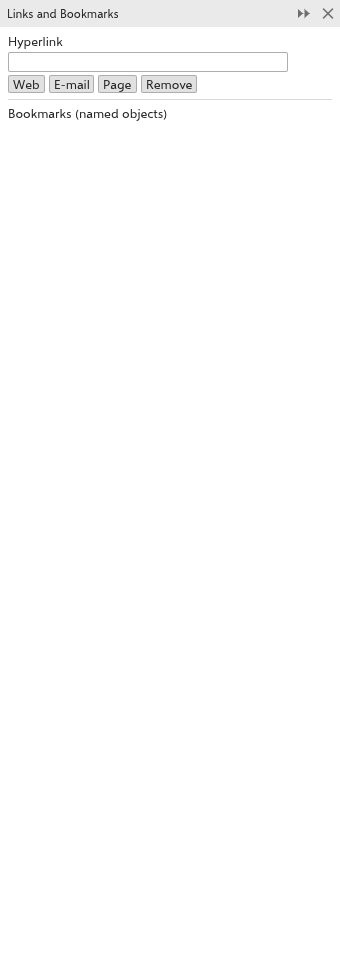
To add a link
- Select one or more objects.
- Type the address in the Hyperlink field and leave the field. The buttons Web, E-mail and Page put
https://,mailto:or#page=in front of the text, so for a page link you only type its number. - Click Remove to take a link away, or empty the field.
Bookmarks
Under Bookmarks (named objects), the panel lists one button per object that has a name. Click one to select the object and zoom to it. To name objects, see Renaming objects and layers.
Links in exported files
- In PDF files, each linked object becomes a clickable area over its box. A page link goes to the top of that page of the file. PDF/X files get no links, as those standards do not allow them.
- In SVG and web pages, the object itself is the link.
- A link on a group covers all its objects; the links of the objects inside are left out.