
Diese Seite ist noch nicht übersetzt und wird auf Englisch angezeigt.
Fonts and glyphs
TraceDraw uses the fonts installed on your computer, fonts you add in the Font Manager, and fonts that come with a drawing. This page explains the panels and the dialog box for working with fonts and special characters.
The Fonts panel
The Fonts panel lists the font families.
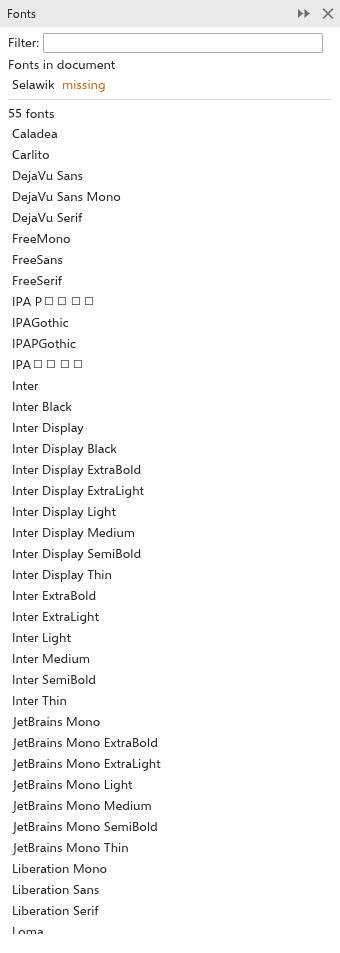
- Type in the filter field to narrow the list.
- Under Fonts in document are the families the drawing uses. A family that is not installed is marked missing; its text shows in a similar font and keeps its font name. A family that came with the drawing is marked embedded.
- Click a family to give it to the selected text, or to make it the font of new text.
- Bold, italic and alignment given to a selected text change that text only. To make them the default of new text, set them with nothing selected.
Font lists and the filter
The font lists of the property bar, the Text panel, the Glyphs panel and the options work the same way:
- Type to jump to a family. The last five families you picked are at the top ("used last"), and every family's name is drawn in its own font.
- The mouse wheel over the closed list picks the next or previous family for the text being edited or selected.
- A font that came with the drawing and is not installed says "Embedded" at the end of its row and after its name in the font box: its text is drawn with the copy that came with the drawing.
- The Filter button at the top of the open list shows the filter's choices beside the list. Each click filters at once and leaves the list open; the button counts the choices made, such as "Filter (2)", and Clear filter at the top of the choices removes them. The choices, in sections that fold:
- Fonts shown: all fonts, installed fonts, the fonts in this drawing, or in the browser version the fonts to download.
- Style: serif, sans serif, script, decorative, monospaced, symbol.
- Weight: light, regular, bold.
- Width: condensed, normal, expanded.
- Technology: TrueType, OpenType, variable.
- Scripts: Latin, Greek, Cyrillic, Hebrew, Arabic, Devanagari, Bengali, Thai, Korean, Japanese, Chinese and symbols.
- OpenType features: ligatures, kerning, small capitals, the kinds of figures, fractions, superscripts and subscripts, ordinals, slashed zero, swashes, alternates and stylistic sets, each on its own.
- Embedding rights: installable, editable, preview and print, restricted, bitmap only.
- Folders: the folders the fonts are in, as the Font Manager lists them: each folder you added to the libraries and the system's font folders, not their subfolders.
Within a section a family needs one of the ticked choices (every ticked one for the OpenType features), and it needs what every section asks. The values are read from the font files themselves; with thousands of fonts the list fills in over a moment the first time.
Variable fonts
A variable font holds a range of weights, widths and other designs in one file. To set them on text:
- Select the text, or the letters, in a variable font.
- Click the button beside the font size on the property bar (or in the first section of the Text panel). It is greyed out, with a tip saying why, when the font is not variable. The Character section of the Text panel shows the same sliders.
- Drag the slider of an axis: Weight, Width, Slant, Italic, Optical size, or the font's own axes by the names it gives them, each over the font's range. The text follows the slider while you drag, so you can judge it on the page.
Letting go of the slider, or typing a value, keeps it as one undo step. Default axes takes the values off. The values are saved in .tdraw files and drawn in exports and PDF files; a weight set this way replaces the bold TraceDraw would otherwise draw.
Missing fonts
When a drawing uses fonts that are not installed, the Missing Fonts dialog box asks which installed font draws each one, for this session or for good. See Missing fonts. Install the fonts and the text shows in them again. Drawings saved as .tdraw, and .cdr files with embedded fonts, can carry their fonts along.
The Font Sampler
The Font Sampler panel (Text > Font Sampler) shows a line of sample text in several fonts, one under the other, to compare them.
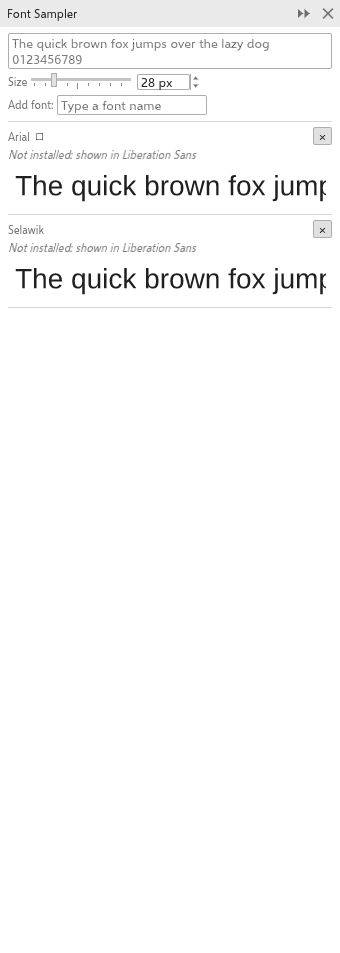
- Type the sample text at the top; left empty, a sentence in your interface language is used.
- Set the size (10 to 96, 28 at first).
- Add fonts by typing part of a name and clicking one of the matches (up to 24 fonts); the cross removes one. At first the panel lists the text font and the fonts of the drawing.
- Click a sample to give that font to the selected text.
The Glyphs panel
The Glyphs panel (Text > Glyphs, Ctrl+F11) shows every character of a font, to insert symbols and special characters.
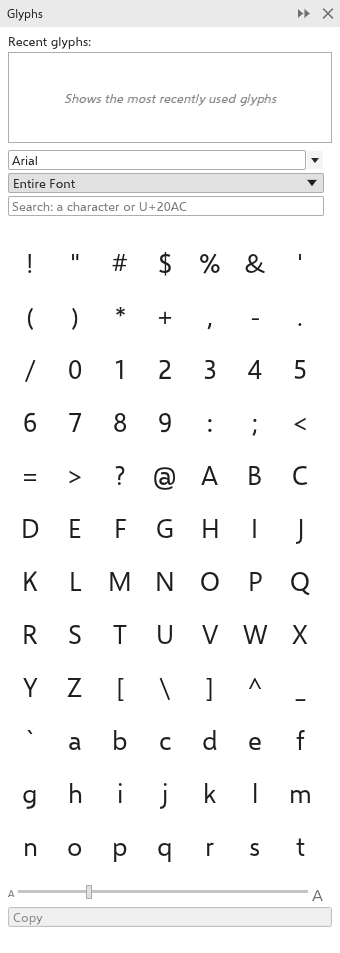
- Choose the font.
- Choose a character range: the entire font, Basic Latin, Latin-1 Supplement, Latin Extended, Greek, Cyrillic, Hebrew, Arabic, punctuation, numbers, currency, arrows, mathematical operators or symbols.
- Click a character. It is inserted at the caret of the text you are editing, or as a new text in the middle of the page.
Hover a character to see its name and code. A small arrow under a character means the font has alternates for it (such as swashes or small capitals); click it to see them. The glyphs you used last are at the top of the panel.
Under the grid, drag the slider to make the characters larger or smaller, and click Copy to put the character you clicked last on the clipboard, to paste it in another program.
Type in the search field above the grid to find characters: type the characters themselves (such as é), or a Unicode code point such as U+20AC, 0x20ac or 20AC. The line above the grid shows the code point, the character and the range of the character under the pointer.
The Font Manager
Tools > Font Manager opens the Font Manager, a window that organizes your fonts.
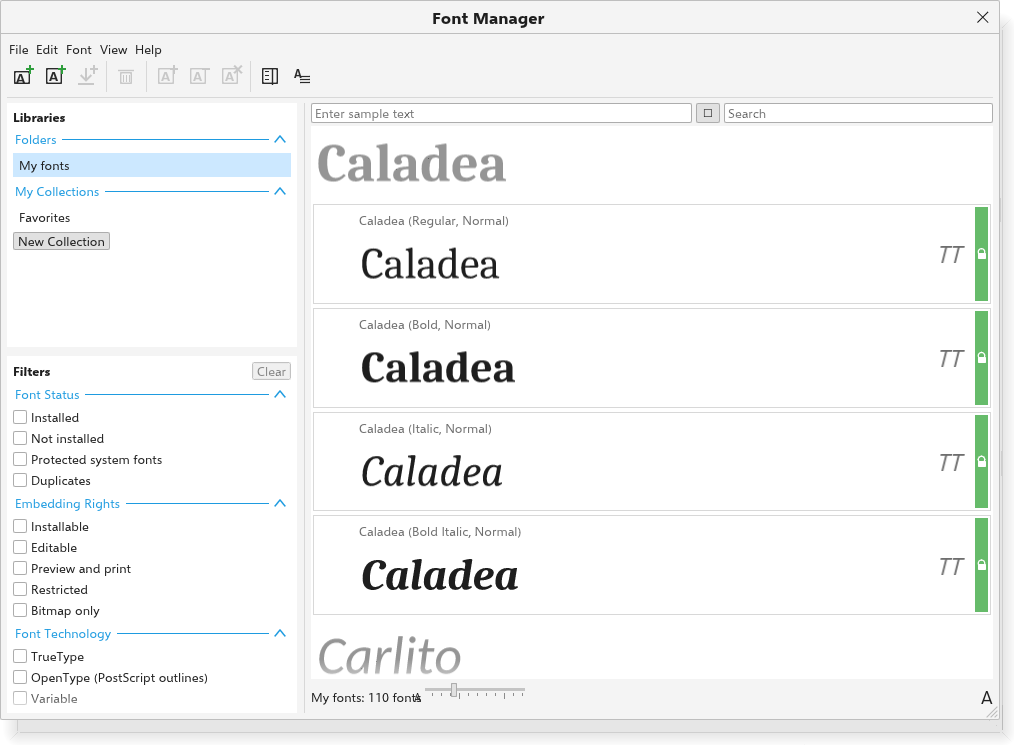
- Libraries (top left): My fonts (the installed fonts), the folders you added, Favorites and your collections. Double-click a collection to rename it; right-click for more.
- Filters (bottom left): by status (installed, not installed, protected system fonts, duplicates), embedding rights, technology (TrueType, OpenType, variable), weight, width, style, character range and OpenType features. Clear removes them.
- Right side: the sample text and its presets, a search field (family, style or PostScript name), and the fonts as cards, grouped by family. Each card shows a sample, the technology and a bar that is green when the font is installed. Click to pick a font, Ctrl+click to pick several.
To use the Font Manager:
- Add folder scans a folder for font files (TTF, OTF, TTC, OTC and Type 1 PFB, three levels down). Its fonts can be used in drawings at once and at every start while the folder is in the libraries, without installing them one by one; removing the folder takes them out again (fonts installed on their own stay). In the browser and on Android, where no folder can be read, it lets you choose several font files at once instead. Add font installs one file at once.
- Type 1 fonts (a
.pfbfile with its.pfmbeside it, as older Windows and CorelDRAW installs kept many script fonts) work like the others: those in the system's font folders are listed at the start, under the name Windows gives them in the.pfm, and Add font takes the.pfbor the.pfm. A Type 1 font with the same name and style as an installed TrueType or OpenType font is left out, so the installed one stays the one used. - Install makes the picked fonts available in TraceDraw, now and at every start. Uninstall removes them; the system's own fonts are protected.
- Add to collection and Remove from collection organize fonts; drag fonts onto Favorites or a collection to add them.
- Double-click an installed font, or choose Use in drawing, to give it to the selected text.
- Show details shows the family, style, version, file, technology, embedding rights, weight, width, glyph count, scripts and features of the font you clicked.
Fonts the drawing uses that are not installed are listed in orange above the cards. In the browser version, Add font loads a font file for the session only.