
Diese Seite ist noch nicht übersetzt und wird auf Englisch angezeigt.
AI drawing and generating
TraceDraw can draw from a description in words and make pictures with an AI service you choose and set up with your own key. TraceDraw has no AI of its own and no account: nothing is sent until you run an AI command, and then only what that command needs goes to the service you set up. Each request is billed by your service; local model servers on your computer cost nothing.
Setting up the AI service
Tools > Options > AI has two pages.
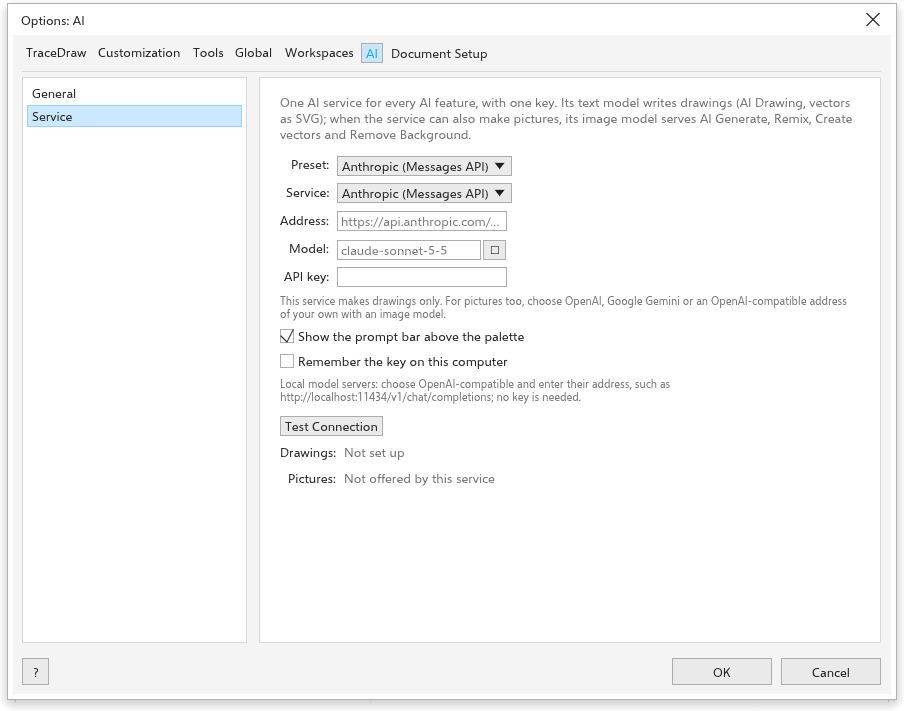
On the Service page, set up one AI service for every AI feature:
- Choose a Preset: Anthropic, OpenAI, Google Gemini, OpenCode Zen, OpenCode Go, or a model server on your computer (Ollama, LM Studio, llama.cpp server, vLLM). A preset fills in the kind of service and the address; Custom takes any address that speaks the same language as OpenAI's chat completions. An address of the server alone, such as
http://localhost:8787, or one ending in/v1, gets the rest of the service's path by itself. - Type the API key of your account with that service (local servers need none). Tick Remember the key on this computer to keep it; it is then stored in plain text in your preferences.
- Choose the Model, and the Image model for services that can make pictures (OpenAI, Google Gemini, or a custom address with an image model).
- Click Test Connection. It asks the service for its models and says how many it has, or shows its error.
For the Anthropic service, Longest reply (32000 tokens at first) is the most a reply may have. A detailed drawing needs a long reply; when one is cut short, raise it, up to what the model allows.
Show the prompt bar puts the AI prompt bar above the color palette.
General
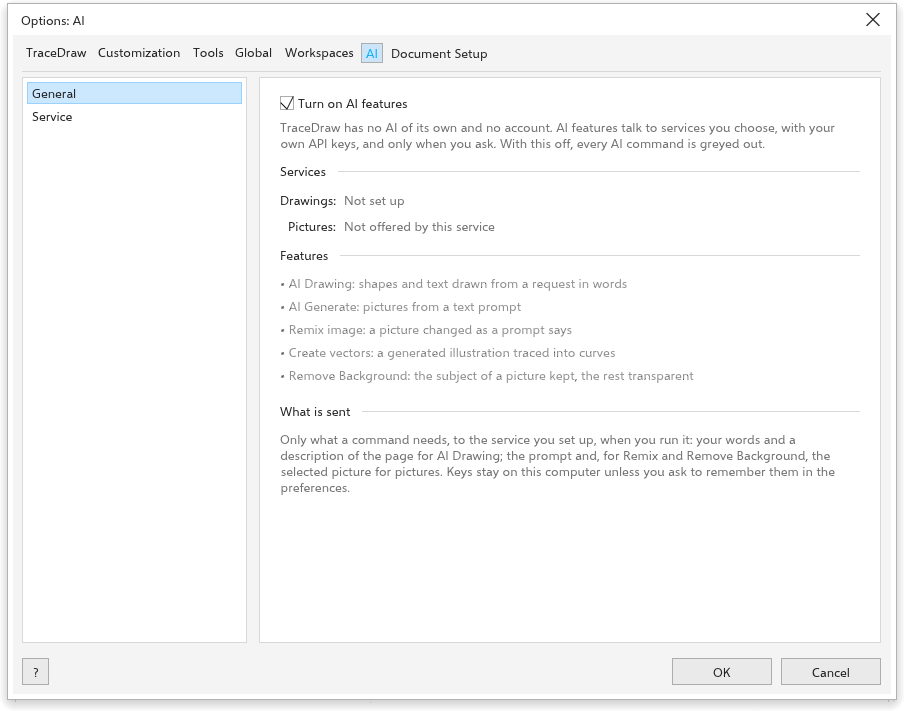
- Turn on AI features (on): turned off, every AI command is grayed.
- Services: whether Drawings and Pictures are Ready or Not set up.
- Features: what each AI command does.
- What is sent: only what a command needs, to the service you set up, when you run it.
Drawing with words
Type a request such as "a red bicycle with blue wheels" or "make the circle bigger and put the title under it", in the prompt bar or in the Draw with words mode of the AI Generate panel (Object > AI Generate > Draw with Words), and press Draw or Enter. The service writes a script for the drawing, which TraceDraw runs as one undo step. The conversation is kept, so you can ask for changes; New conversation starts again. Open in Scripts shows the script.
The AI Generate panel
The AI Generate panel (Tools > AI Generate, or the AI Generate button on the standard toolbar) makes pictures with the image model of your service.
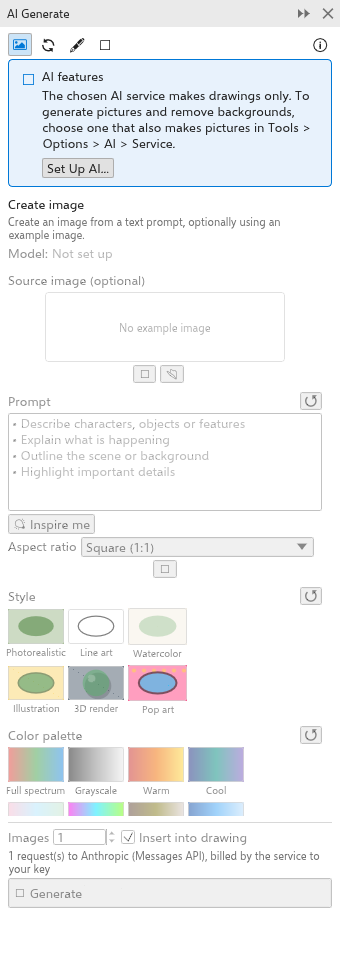
Choose a mode with the buttons at the top:
- Create image: a picture from a description. Inspire me fills in an idea. Choose the aspect ratio.
- Remix image: changes a picture as you describe (the selected bitmap at first). Ready-made requests include mockup, restore photo, colorize sketch, replace background, change season and recolor.
- Create vectors: an illustration turned into editable shapes, either a picture traced into curves or an SVG drawing written by the text model.
- Draw with words (see above).
Every mode has a Model, an optional reference picture (Use selection or Import file), the Prompt, and Style and Color palette tiles. At the bottom, set the number of Images (1 to 4) and Insert into drawing, then click Generate. Results stay in the panel; click one to insert it.
Other AI commands
- Image > Remove Background with AI keeps the subject of a picture and makes the rest transparent.
- AI Art Styles repaints the selection in one of eight styles.
While AI is off or not set up, the commands are grayed, and their tip says why; the Set Up AI button opens the right options page.