
Diese Seite ist noch nicht übersetzt und wird auf Englisch angezeigt.
Resampling, straightening and inflating bitmaps
Resample
Image > Resample gives the selected bitmaps a new number of pixels; their size on the page stays.
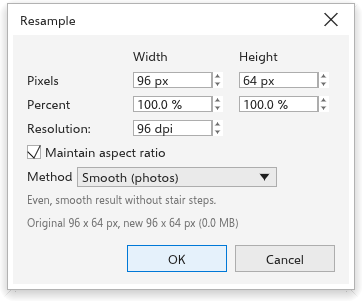
- Type the new size in pixels, as a percent, or as the resolution it gives at its size on the page. With Maintain aspect ratio on, the height follows the width.
- Choose the method:
- Smooth (photos), at first;
- Sharp, a little crisper;
- Hard pixels (pixel art): every pixel stays a square of one color;
- Enlarge with detail: smooth, then sharpened when the picture grows.
- Click OK.
The dialog box shows the original and new sizes and the memory the new picture takes. With several bitmaps selected, each is scaled by the same factor.
Straighten Image
Image > Straighten Image corrects photos that are tilted, seen at an angle or bent by the lens.
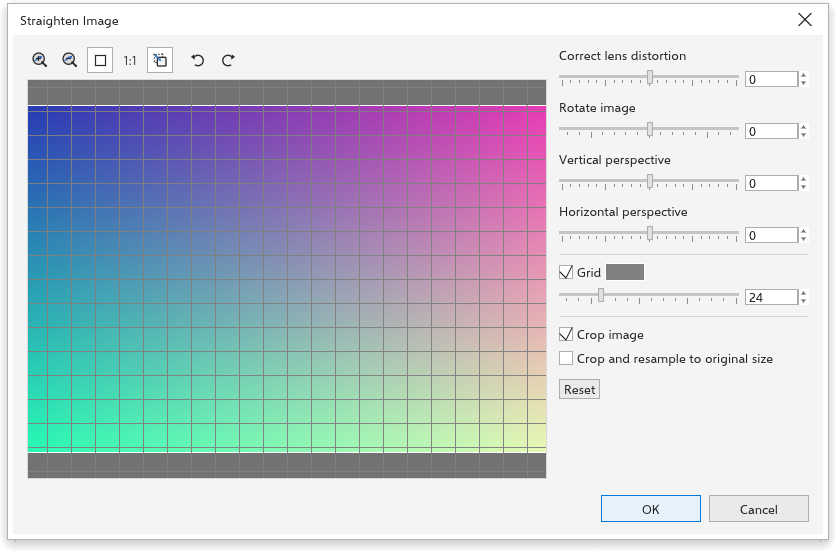
- Use the Grid (its size and color are adjustable) to line the picture up.
- Set the sliders: Correct lens distortion (-100 to 100), Rotate image (-15 to 15 degrees), Vertical perspective and Horizontal perspective (-100 to 100). The rotate buttons turn the picture a quarter turn first.
- With Crop image on, the result is cropped to the largest rectangle with the original proportions; Crop and resample to original size brings it back to the original number of pixels. Without cropping, the corners are transparent.
- Click OK. Reset puts every setting back.
Zoom and pan the preview with the tools above it. The result replaces the pixels, so effects on the bitmap are made permanent.
Inflating bitmaps
Some effects, such as blurs, spread past the edges of a bitmap.
- Image > Bitmap Padding > Automatic (on at first) grows bitmaps by what their effects need, with a transparent margin.
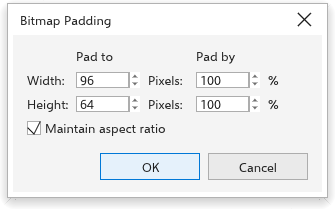
- Custom grows the selected bitmaps by hand: for the width and height, type the new size in pixels or a percentage (100 to 1000%), with Maintain aspect ratio. The picture stays centered.
Other bitmap commands
- Crop Bitmap crops a bitmap with the Crop tool; dragging a corner of a bitmap with the Shape tool crops it too.
- Edit Bitmap opens the bitmap in another program.
- Remove Background makes the background of a photo transparent on this computer (see Removing the background); Remove Background with AI does it with the AI service.
- Break Link and Update from Link work on bitmaps linked to a file.
- Save Bitmap As saves a bitmap as a PNG file.