
此頁面尚未翻譯,以英文顯示。
Contours
A contour draws evenly spaced copies of an object's outline inside it, outside it, or to its center, like the lines of a map. It is a live effect: change the object and the contour follows.
To add a contour
With the tool:
- Choose the Contour tool from the Effects flyout.
- Drag from an object: away from its middle for an outside contour, towards it for an inside one. The further you drag, the larger the spacing.
With the panel:
- Select an object.
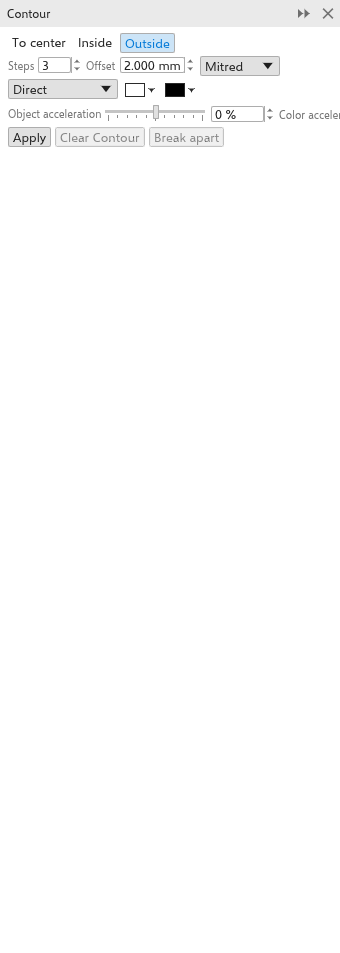
- Open the Contour panel with Effects > Contour (Ctrl+F9).
- Set the options and click Apply.
Groups and bitmaps cannot take a contour.
An open curve's contour runs round both sides of it: each step is a closed band, cut straight across at the curve's ends.
Handles on the drawing
With the contour tool, an object with a contour shows a line from the middle of its right edge: outward for an outside contour, inward for an inside one or one to the center.
- Drag the square at the end of the line to change the distance the contour reaches. The steps stay as many, further apart or closer together.
- Drag the bar on the line, at the first step, to change the number of steps: towards the object for more steps, away from it for fewer. The last step stays where it is. A contour to the center has no bar, since it takes as many steps as fit.
The contour follows while you drag, and each drag is one step to undo.
Contour settings
The property bar and the panel show the settings of the selected contour and change it at once.
- To center, Inside or Outside (at first).
- Steps: 3 at first, up to 999, set with a slider or typed in its box. To center makes as many as fit.
- Offset: the distance between steps (2 mm at first).
- Corners: mitered (sharp, at first), round or beveled.
- Color direction: direct, clockwise or counterclockwise around the color wheel, from the object's colors to the last step's.
- The fill and outline colors of the last step (white and black at first). An object without a fill gives unfilled steps.
- Object acceleration and color acceleration (-100 to 100%) crowd the steps or the colors towards the object or towards the last step.
Outside steps are drawn behind the object, inside steps in front of it.
Clear contour removes the contour; Break apart turns the steps into objects, grouped beside the object. Object > Break Contour Group Apart (Ctrl+K, also on the right-click menu) does the same.