
Halaman ini belum diterjemahkan dan ditampilkan dalam bahasa Inggris.
Finding and replacing
The Find and Replace panel (Ctrl+F) finds text in the drawing, and replaces it, finds objects by name, or finds objects by their fill, outline, outline width, font or type and replaces those. Open it with Edit > Find and Replace.
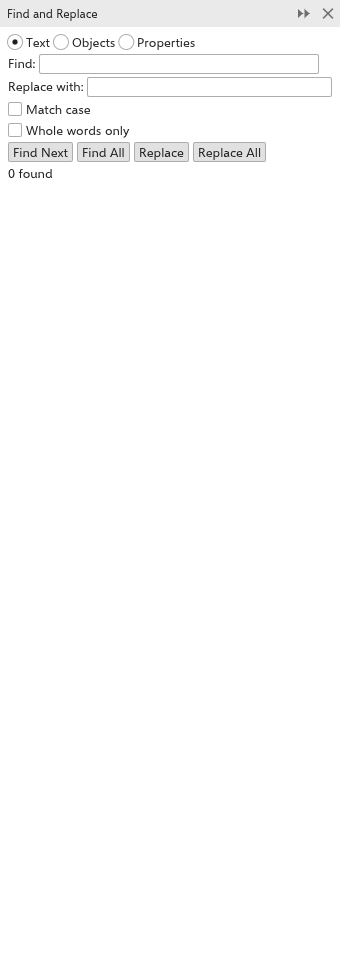
Finding and replacing text
- Choose Text.
- Type what to look for in Find, and the new text in Replace with.
- Tick Match case to tell capitals from small letters, and Whole words only to skip the text when it is part of a longer word.
- Click Find Next to select the next text object that holds it, or Find All to select them all.
- Click Replace to replace it in the selected text, or Replace All to replace it everywhere.
The panel says how many were found.
Finding objects
Choose Objects, type part of a name, or a kind of object such as "Rectangle", and click Find Next or Find All. The search covers the current page. To name objects, see Renaming objects and layers.
Finding and replacing by properties
- Choose Properties.
- In Look in, choose This page or Whole drawing.
- Under Find objects with, tick what to look for: Type, Fill, Outline (a colour, or None), Outline width or Font. An object is found when it has everything ticked. From Selection takes these from the selected object, for example to find every object filled with its colour.
- Click Previous or Find Next to select the objects one by one (on other pages too), or Find All to select those on this page.
- To change them, tick under Replace with the new fill colour, outline colour, outline width or font, and click Replace All. All the changes undo in one step.
A fill colour looked for is replaced wherever it is used, in gradients too. Locked objects are left as they are.
A new font can go to every character, or with Numbers only only to the numbers (to set the digits of a text in another font) or with Letters only only to the letters. Digits to 0-9 writes the digits of other scripts, such as Arabic-Indic or Devanagari digits, as 0 to 9 and leaves the letters alone.
For every option, how colors are compared and what each replacement does, see Finding and replacing by properties.