
Эта страница ещё не переведена и показана на английском.
Aligning and distributing objects
Aligning lines objects up by their edges or centers; distributing spaces them evenly. Use the Align and Distribute panel, the commands of Object > Align and Distribute, or the keys below.
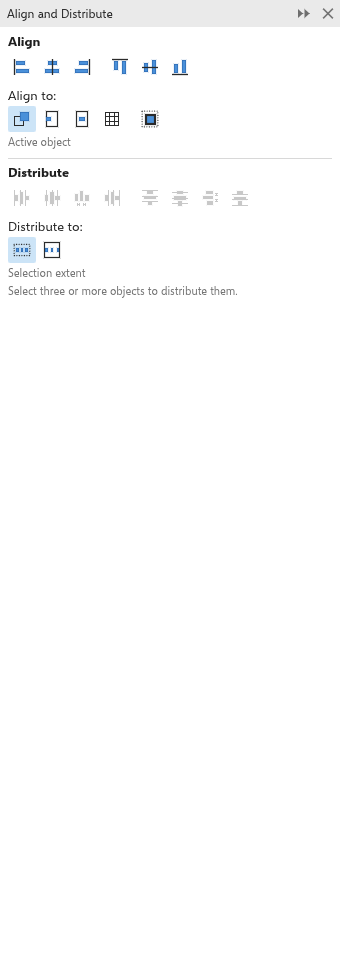
Aligning
- Select the objects. Select the one the others should line up with last.
- In the Align part of the panel, choose Align to:
- Active object (at first): the object selected last; with one object selected, the page;
- Page edge: the edges of the page;
- Page center: the center of the page;
- Grid: each object to the nearest line of the document grid.
- Click one of the six buttons: left edges, centers on a vertical line, right edges, top edges, centers on a horizontal line, or bottom edges.
Use outline: align the outer edges of the outlines: with this on, the outer edges of the outlines meet, instead of the paths themselves.
The keys always align to the object selected last:
| Key | Command |
|---|---|
| L | Align Left |
| R | Align Right |
| T | Align Top |
| B | Align Bottom |
| E | Align Centers Horizontally |
| C | Align Centers Vertically |
| P | Center to Page |
Distributing
- Select three or more objects (two or more to distribute across the page).
- In the Distribute part, choose Distribute to:
- Selection extent (at first): the first and last objects stay where they are, and the others move between them;
- Page extent: the objects spread across the whole page, the first touching one side and the last the other;
- Set spacing: the first object stays and the others follow it at the distance in Spacing (between the objects for the gaps, else between their edges or centers).
- Click one of the eight buttons: left edges, centers, gaps or right edges across the page, or top edges, centers, gaps or bottom edges down it. Spreading the gaps gives equal space between the objects whatever their sizes.
With Set spacing, once a button has spread the selection you can change the spacing and watch the objects follow: turn the mouse wheel over the box, or drag the slider under it. Let go of the slider, or move the pointer away from the box, to keep the result as one undo step; press Esc to put the spacing and the objects back.
With too few objects the buttons are pale and the panel says how many are needed. Each align or distribute is one undo step.
To place copies at even distances in one step, see Repeat copies.
Fit objects to a path
The Fit Objects to Path panel places objects along a line, a curve or the outline of a shape, with copies, spacing, placement and rotation of your choice. Select the objects, then the path last (Shift+click), and choose Object > Fit Objects to Path. See Fitting objects to a path for every setting.