
此页面尚未翻译,以英文显示。
Tabs, columns, bullets and drop caps
The Text menu has four dialog boxes for laying out paragraph text. Each acts on the selected paragraph text. Their settings are also in the Frame section of the Text panel.
Tabs
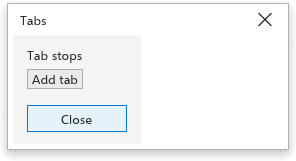
Text > Tabs sets where the Tab character jumps to. A paragraph without stops of its own has a left stop every 12.7 mm (half an inch); Default tab spacing in the Options changes that.
- Select the paragraph text, or click in the paragraphs to change.
- Choose Text > Tabs.
- Under Tab stops, click Add tab to add a stop, change a stop's position, its alignment (left, centre, right or decimal) and its leader, or click x to remove it.
- Click Close.
A right stop ends the text after the tab at the stop, so prices line up on their right; a decimal stop lines up their decimal points.
The Paragraph section of the Text panel shows the paragraph's tab stops too, and its Tabs... button opens this dialog box.
While you type in a paragraph frame, a ruler runs along its top edge. Click it to add a left stop, drag a stop to move it, drag it off the ruler to remove it, or right-click to choose its alignment. The two small triangles along the ruler's upper edge are the left and right indents of the paragraph: drag them to move where its lines start and end. Each change undoes in one step.
Columns
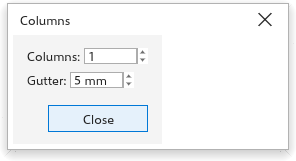
Text > Columns splits a text frame into columns; the text flows from one column into the next.
- Select the paragraph text.
- Choose Text > Columns.
- Set the number of Columns and the Gutter, the space between columns (5 mm at first).
- Click Close.
To break to the next column at a given place, insert Column/Frame Break from Insert Special Character.
Bullets
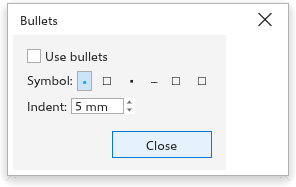
Text > Bullets puts a bullet before each paragraph.
- Select the paragraph text.
- Choose Text > Bullets.
- Tick Use bullets, and set the bullet Symbol and the Indent (5 mm at first).
- Click Close.
Drop caps
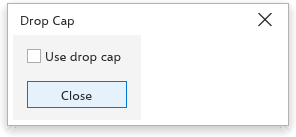
A drop cap is a large first letter that spans several lines.
- Select the paragraph text.
- Choose Text > Drop Cap.
- Tick Use drop cap and set the Lines dropped (3 at first).
- Click Close.
The letter is scaled so its top meets the top of the first line and it sits on the baseline of the last line it spans; the lines beside it are shortened to make room, as wide as the letter's ink (an italic letter leans out of its width), an accent on the letter drops with it, and the lines stay shortened down to the end of the tail of a g, y or j.
The letter is still a character of the text: click it with the Text tool, or drag over it, to select it and change its colour, font or size as for any other letter.
Hyphenation
Text > Use Hyphenation lets the selected text's words break at the end of lines (while you type in a text, the paragraphs at the cursor; with no text selected, it is the setting for new text), with at least two letters before and three after the break. A comma or other punctuation next to a word does not stop it from breaking, and words with an apostrophe (such as Italian dell'anno) break too. Words with a capital letter are never broken. To decide yourself where a word may break, see Custom hyphens.