
このページはまだ翻訳されていないため、英語で表示しています。
Bevels
A bevel makes the edges of an object look raised or carved, by lighting one side of the edge and shading the other. It is a live effect, set in the Bevel panel; open it with Effects > Bevel.
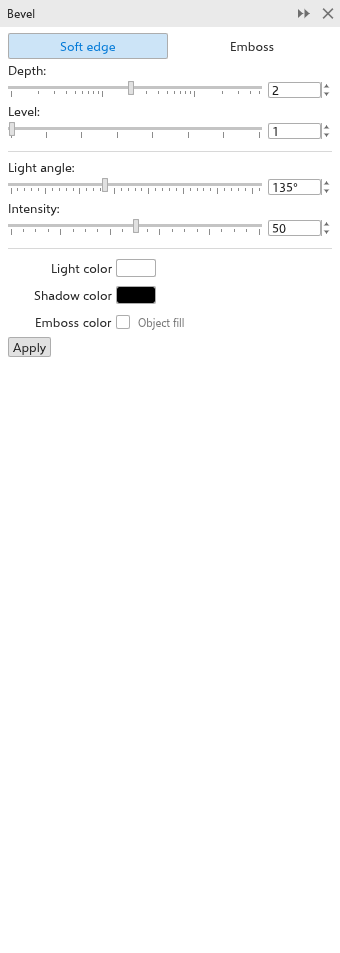
To bevel an object
- Select a filled object.
- In the Bevel panel, choose the style:
- Soft edge: the edge slopes into the object, lit on one side and shaded on the other;
- Emboss: the object seems pressed out of the page; the bevel is drawn around the outline instead of inside it.
- Center: The bevel band half inside and half outside the outline.
- Set the look of the bevel:
- Depth: how far the bevel reaches from the edge, into the object for a soft edge and out of it for an emboss;
- Level: how many steps the light and the shade are cut into across the bevel. 1 gives two flat tones, more fade them smoothly from the edge inwards;
- Light angle: the direction the light comes from;
- Intensity: how strong the light and the shade are;
- Smooth light: The light falls round the edge by direction, each part as lit as it faces the light, instead of two halves.
- Light color and Shadow color: the colours of the lit and the shaded side;
- Emboss color: the colour the bevel is toned from. Tick the box and pick a colour to use your own; left off, the object's own fill is used.
- Click Apply. With an object selected, each change already shows on it as you make it, before Apply.
When you select an object that already has a bevel, the panel shows that bevel, and changing a setting edits it right away.
To copy a bevel from another object, use Object > Copy Effect > Bevel From. Object > Clear Effect removes it. The extrusion panel also has a bevel for the front face; see Extrusions.