
このページはまだ翻訳されていないため、英語で表示しています。
Workspaces
A workspace is how the window is set up: which bars show and where, the toolbox, keyboard shortcuts, the color palette options and the look of the interface. Choose one in Window > Workspace, or on the Workspace page of Tools > Options > Workspaces.
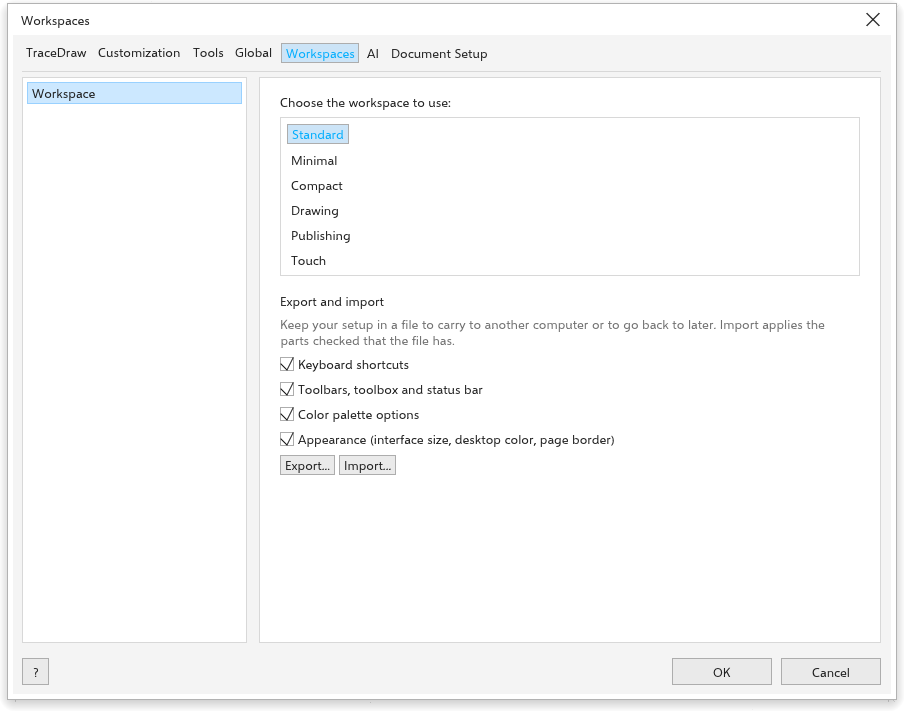
Built-in workspaces
- Standard: the usual setup.
- Minimal: fewer bars, for a first start.
- Compact, Drawing and Publishing: bars and panels for those kinds of work.
- Touch: for touch screens. The interface is drawn larger, rulers, panels and the status bar are hidden, and two fingers pan and pinch to zoom with any tool. Drawings keep their real size.
What is kept
Everything you change is kept when TraceDraw closes and comes back the next time: the options, where each bar sits and which bars show, the tool each toolbox group shows, the panels that are open, units, snapping, the settings new objects take and what the window shows.
Exporting and importing your setup
To carry your setup to another computer, or keep it safe:
- On the Workspace page, under Export and import, tick the parts to include: keyboard shortcuts; toolbars, toolbox and status bar; color palette options; appearance.
- Click Export and save the
.tdwsfile. - On the other computer, click Import and choose the file. Only the parts you ticked are applied.
Window > Workspace > Export Workspace and Import Workspace do the same with every part.