
Bu sayfa henüz çevrilmedi ve İngilizce gösteriliyor.
Creating a drawing
Every drawing starts with a page size, a number of pages, a color mode and a resolution. You choose them in the Create a New Document dialog box.
To create a drawing
- Choose File > New (Ctrl+N), click New on the standard toolbar, click the + after the last document tab, or click New Document on the Welcome Screen.
- In the Create a New Document dialog box, set the values described below.
- Click OK or press Enter.
The drawing opens in its own tab. The dialog box remembers your values for the next drawing.
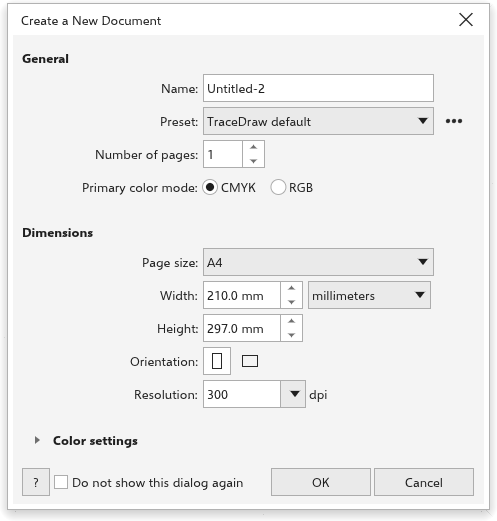
General
- Name names the drawing. It starts as the next
Untitled-N. - Preset sets the color mode, page size, units and resolution at once. The presets are TraceDraw default and Default CMYK (CMYK, A4, millimeters, 300 dpi), Default RGB (RGB, A4, millimeters, 300 dpi) and Web (RGB, 1920 x 1080 pixels, 72 dpi). When you change one of those values, the preset shows Custom unless the values match a preset again.
- The button beside the preset holds Save Preset, which asks for a Preset name and adds the current values to the list, and Delete Preset, which removes a preset you saved. The built-in presets cannot be deleted.
- Number of pages sets how many pages the drawing has, from 1 to 999. Each page is named "Page N" and has one layer.
- Primary color mode is CMYK, for print, or RGB, for screens.
Dimensions
- Page size lists the paper sizes, or Custom. Choosing a size keeps the current orientation. A width and height you type that match a paper size, in either orientation, select its name.
- Width and Height set the page size, in the units you choose in the list beside the width. Those units become the drawing units of the property bar.
- Orientation: Portrait or Landscape.
- Resolution in dpi (300 at first). It is used for the effects that are turned into pixels, and to measure sizes in pixels: 1920 pixels are 162.56 mm at 300 dpi and 677.33 mm at 72 dpi. When the units are pixels, changing the resolution keeps the page's size in pixels.
Color settings
Open Color settings to choose the RGB profile, CMYK profile and Grayscale profile of the drawing and the Rendering intent. They start at sRGB, the built-in CMYK profile, a 20% dot gain grayscale and relative colorimetric. See Color management.
Skipping the dialog box
Tick Do not show this dialog again to create new drawings at once, with the values you used last. To see the dialog box again, turn on the matching setting on the General page of Tools > Options > TraceDraw. See TraceDraw options.
Other ways to start
- File > New from Template starts from a template. See Templates.
- File > Open opens an existing drawing. See Opening and saving drawings.