
Bu sayfa henüz çevrilmedi ve İngilizce gösteriliyor.
Removing the background of a bitmap
Image > Remove Background makes the background of a photo or scan transparent and keeps the subject. It works on this computer and needs no AI service. The property bar of a selected bitmap has the same command.
To remove a background
- Select one or more bitmaps.
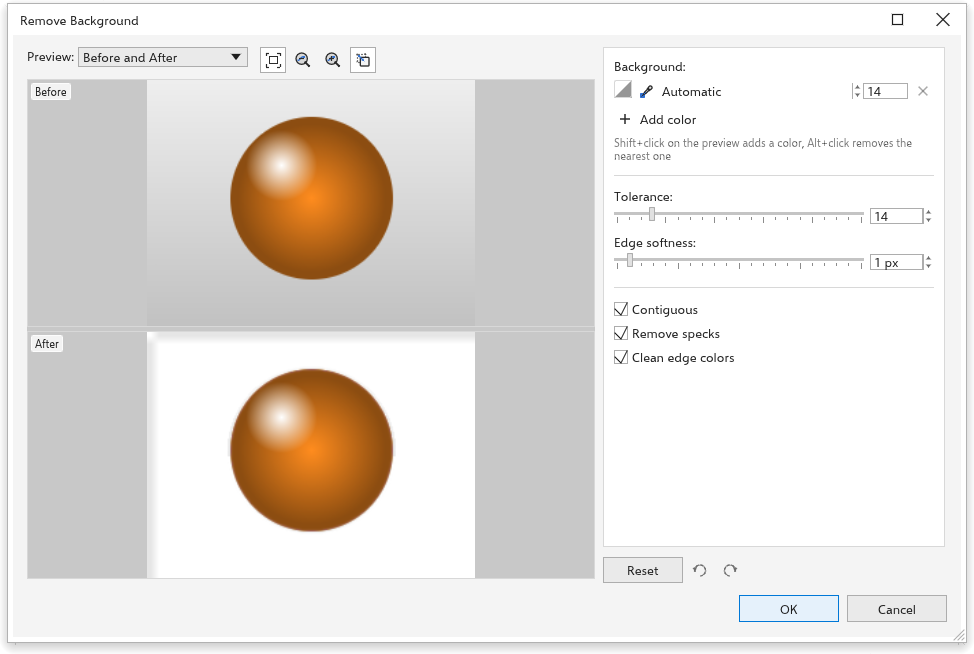
- Click Image > Remove Background. The preview shows the bitmap before and after, with a checkerboard where it becomes transparent.
- Set the options below until the subject stands out cleanly.
- Click OK. Every selected bitmap changes in one undo step.
Options
- Background The colors to remove, one row each. At first there is one row, Automatic: TraceDraw learns the background's colors from the edges of the picture (up to four, so a gradient or a two-tone backdrop works). Each row has:
- its swatch;
- an eyedropper: click it, then click a color in a preview or on the drawing, and the row takes that color. On the first row, Automatic goes back to the learnt colors;
- its own tolerance, a whole number from 0 to 100. It shows the Tolerance below until you change it;
- Remove color (x), which takes the row out. The last row always stays.
Add color (+) adds a row: click it, then click the color in the Before preview or on the drawing. A pixel counts as background when it is close enough to any color of the list, each color with its own tolerance.
- Shortcuts with the eyedropper on Shift+click in a preview adds the color under the pointer as a new row and keeps the eyedropper on, so you can pick several colors in a row. Alt+click takes out the row whose color is nearest to the one under the pointer. A color picked in a preview is taken from the picture before the change, so a part already removed can still be picked.
- Tolerance How far a color may be from the background's and still count as background (0 to 100, whole numbers). It is the tolerance of every row that has none of its own. Raise it when some backdrop stays; lower it when parts of the subject go.
- Edge softness Feathers the edge of the subject, in pixels. 0 keeps a hard edge.
- Contiguous (on at first) Only the background connected to the edges of the picture goes, so a white shirt on a white backdrop keeps its inside. A color picked in a preview also starts the removal from the point where you clicked, so a hole inside the subject can go with one pick. Turn it off to remove every pixel near a listed color, for example all the holes of a letter or a ring.
- Remove specks (on at first) Small loose spots left in the background go too.
- Clean edge colors (on at first) Takes the old background's color out of the half-transparent pixels of the edge, so no light or dark halo shows when the subject goes on another background.
- Reset, under the settings, puts every option back, with one Automatic row; the two arrows beside it undo and redo the changes made in the dialog box.
OK remembers the options and the list of colors until you close TraceDraw, so the next Remove Background starts with them.
Tips
- It works best on a backdrop that differs from the subject: a studio background, a sky, a product on a plain table. For busy scenes, the AI command Remove Background with AI (see AI) separates subject and scene by their meaning.
- The result replaces the pixels; effects on the bitmap are made permanent. To fine-tune afterwards, use Masking colors.