
Tato stránka zatím není přeložena a zobrazuje se v angličtině.
The Hints panel
The Hints panel explains the tool you are using, while you use it. It is open at first, beside Properties and Objects; open it again with Help > Hints or from Window > Panels.
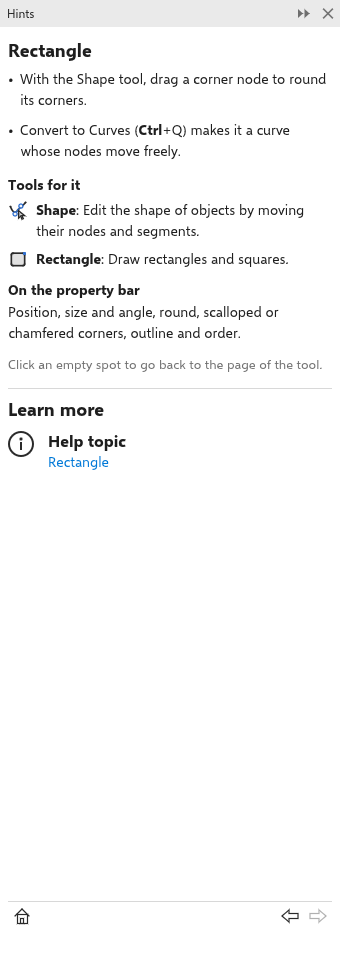
What the panel shows
- The home page introduces the panel and lists topics such as drawing lines, shapes, selecting, moving and rotating objects, effects, outlines, fills, text, AI and getting help. Each topic is a link.
- A topic page explains the topic and lists the tools that serve it, each with its icon, its name and what it does. Click a tool to see its page.
- A tool page tells you how to use the tool, one instruction per line with the keys in bold, and links to the topic that lists the tool.
- An object page appears when you select something: it names what you picked (a curve, a rectangle, text, a bitmap, a group, a clip frame, a blend, a dimension and so on, or several objects), says what you can do with it, lists the tools that work on it and tells what the property bar offers for it.
Every page ends with Learn more, a link to the page of this Help that explains the tool or topic in full.
Moving between pages
When you choose another tool, the panel shows that tool's page. The bar at the bottom of the panel has Home on the left and Back and forward on the right, like a web browser.
Selecting an object shows its page; clicking an empty spot, so that nothing is selected, brings back the page of the tool you are using. While you draw with a drawing tool, the object you have just drawn keeps the tool's page in view; click the object to see its page.