
Tato stránka zatím není přeložena a zobrazuje se v angličtině.
Tool options
Tools > Options > Tools sets how tools behave and what new objects they draw. Most of these values are also on the property bar of each tool.
Pick
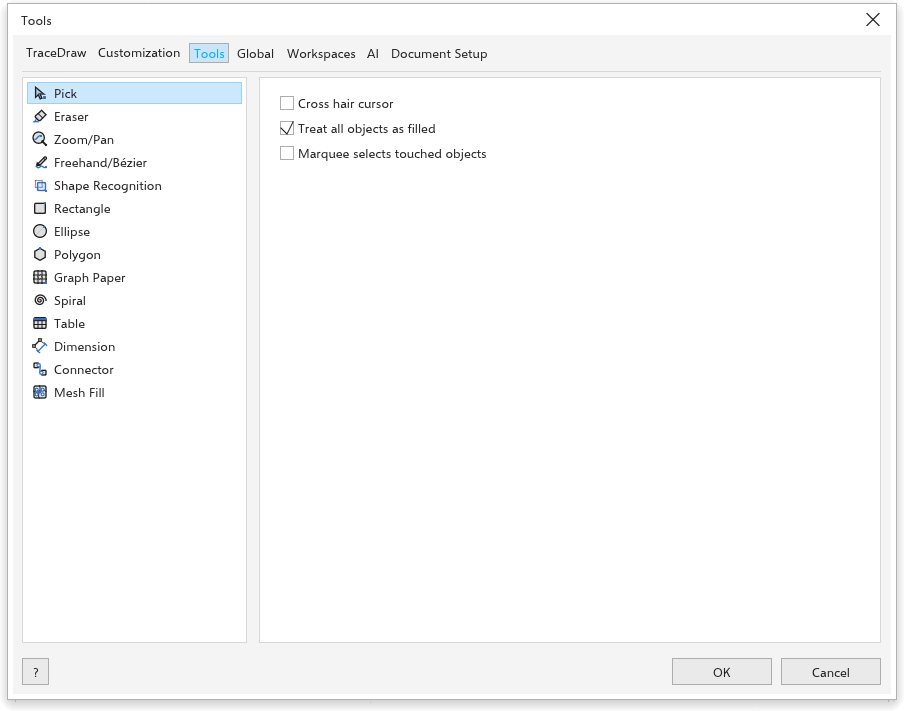
- Cross hair cursor: the pointer is a cross hair.
- Treat all objects as filled (on): clicking inside an unfilled object selects it.
- Marquee selects touched objects (off): a marquee also selects the objects it only touches; Alt then selects only those wholly inside.
- Ctrl and Shift keys Traditional: Ctrl and Shift keep a move horizontal or vertical; on a handle, Shift works from the centre and Ctrl in steps. Windows standard: Ctrl held as a move is dropped leaves the original in place (what moved is a copy) and Shift keeps a move straight; on a handle, Ctrl and Shift trade places.
Eraser
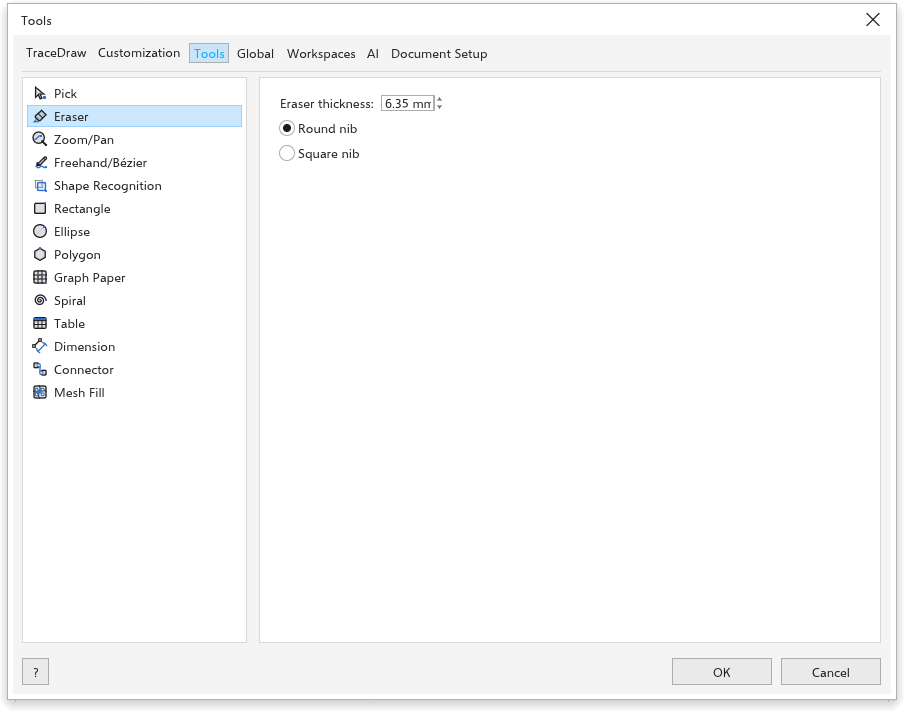
Eraser thickness (6.35 mm at first), and Round nib or Square nib.
Auto-reduce nodes of resulting objects: After erasing, the nodes the eraser's edge left that the shape does not need are removed.
Zoom and Pan
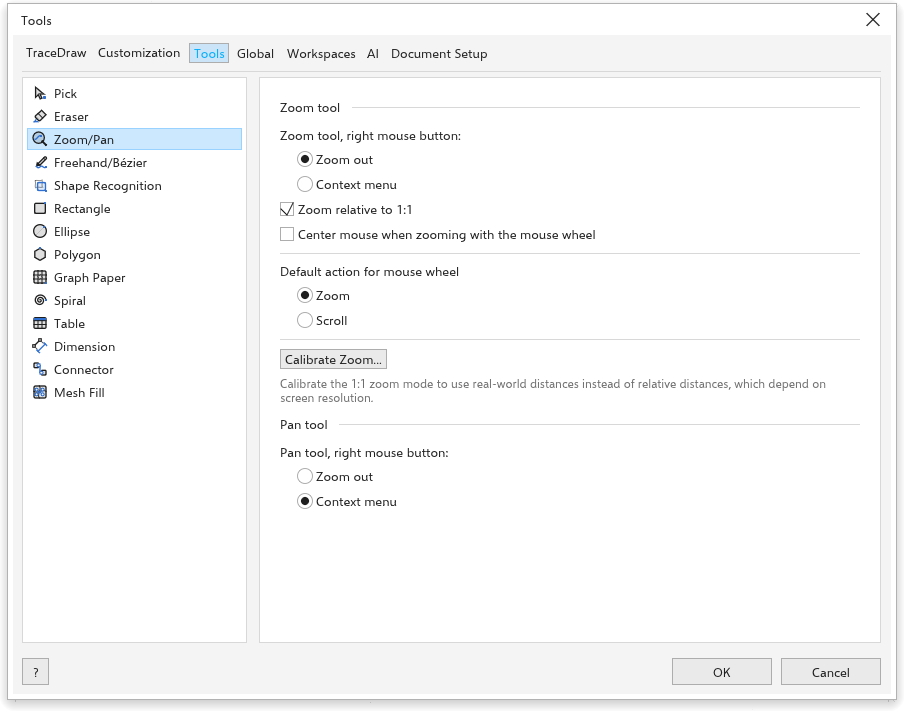
- Zoom tool, right mouse button: Zoom out (at first) or the Context menu.
- Default action for mouse wheel: Zoom or Scroll.
- Zoom relative to 1:1 (on): zoom 100% is the real size at the calibrated screen resolution; off, it is 96 pixels per inch.
- Center mouse when zooming with the mouse wheel (off): a wheel zoom brings the spot under the pointer to the middle of the view, and the pointer with it.
- Smooth zoom (on): a wheel notch zooms in a short glide instead of a jump; the faster you turn the wheel, the shorter the glide. Off, each notch zooms at once.
- Light zoom (for slow computers): A wheel notch zooms at once, without the glide, and the drawing is drawn again once, after the zoom stops, instead of at every step. The zoomed picture stays blurry a moment longer, but the computer works much less. Help > Benchmark turns it on when the score is low.
- Zoom per wheel notch how much one notch zooms in or out, from 1 to 100 percent (15 % at first).
- Pan tool, right mouse button Zoom out or the Context menu (at first).
- Pan inertia (off): a pan you let go of while the pointer is still moving keeps the view sliding the same way and easing out, as a flick does. A click or the wheel stops it. It works for the Pan tool, the middle button and two fingers.
Freehand/Bézier
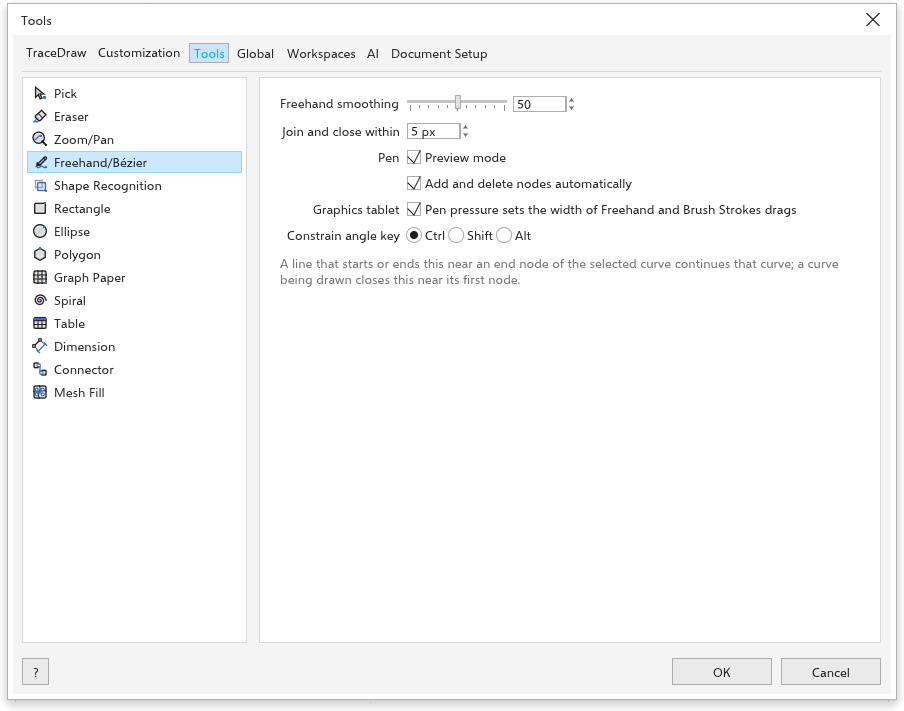
- Freehand smoothing: 0 to 100 (50 at first).
- Join and close within: how close to an end node a line must start to continue the curve (5 screen pixels at first). See Continuing a curve.
- Preview mode and Add and delete nodes automatically (both on) for the Pen tool; see Pen.
- Graphics tablet: Pen pressure sets the width of strokes, brushes and the Eraser (on); see Drawing with a graphics tablet.
- Corner threshold: Freehand: 0 keeps every curve smooth; higher values keep a sharp corner wherever the stroke turns sharply, more corners the higher the value.
- Straight line threshold: Freehand: 0 keeps every curve; higher values turn the stretches drawn almost straight into straight lines, allowing up to this many pixels of wobble.
Shape Recognition
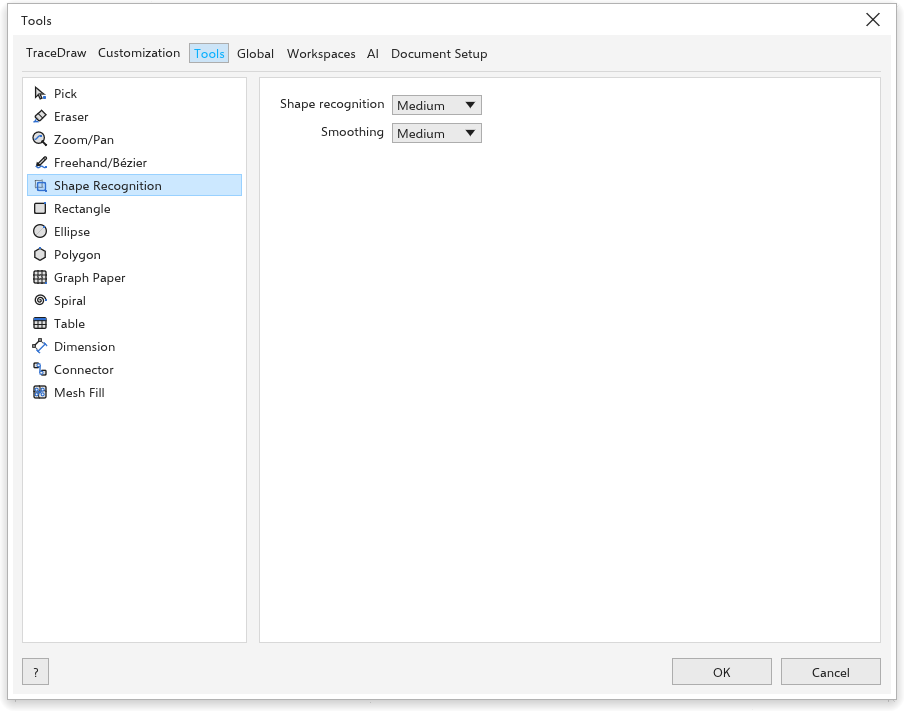
Shape recognition and Smoothing of the Shape Recognition tool, from off to highest, as on its property bar.
Rectangle
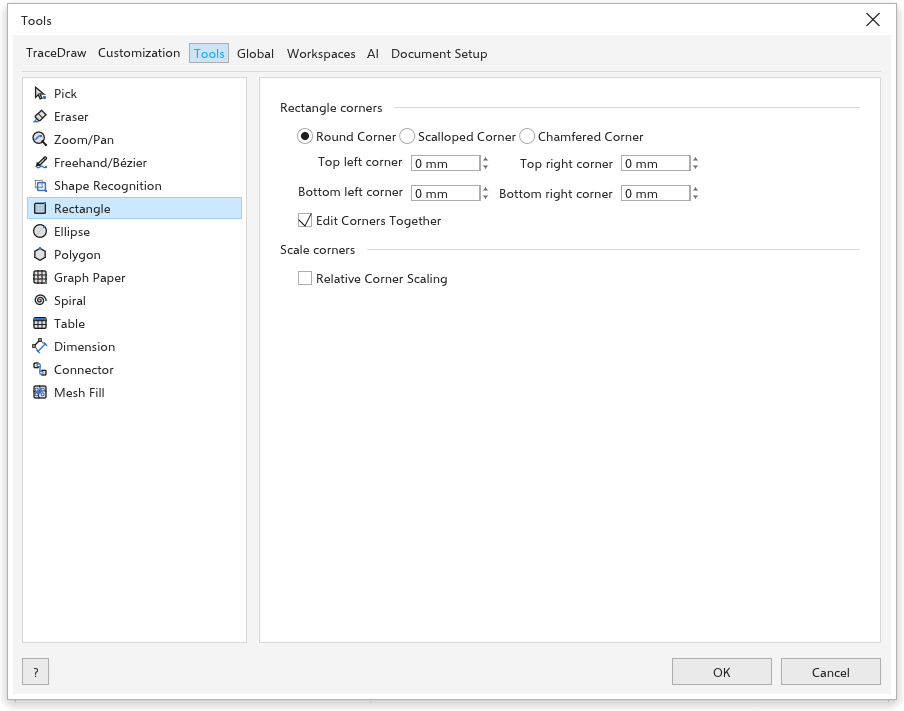
Rectangle corners: Round Corner, Scalloped Corner or Chamfered Corner, the four corner sizes and Edit Corners Together. Scale corners: Relative Corner Scaling.
Ellipse
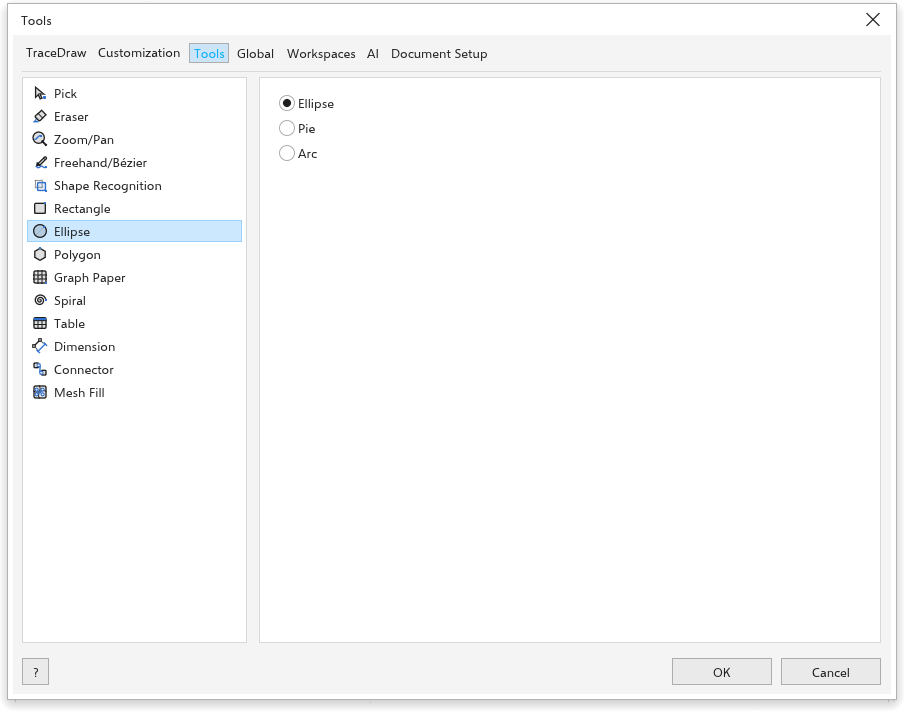
Ellipse, Pie or Arc, with the Starting angle and Ending angle.
Direction: Counterclockwise / Clockwise. Which way pies and arcs run from the start angle to the end angle.
Polygon
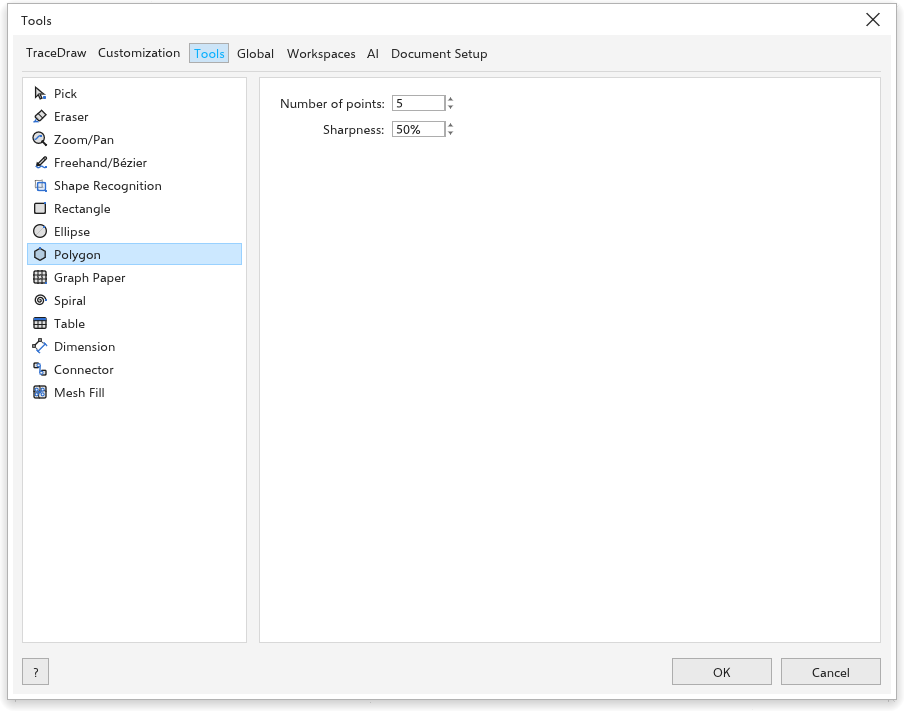
Number of points and Sharpness.
Graph Paper
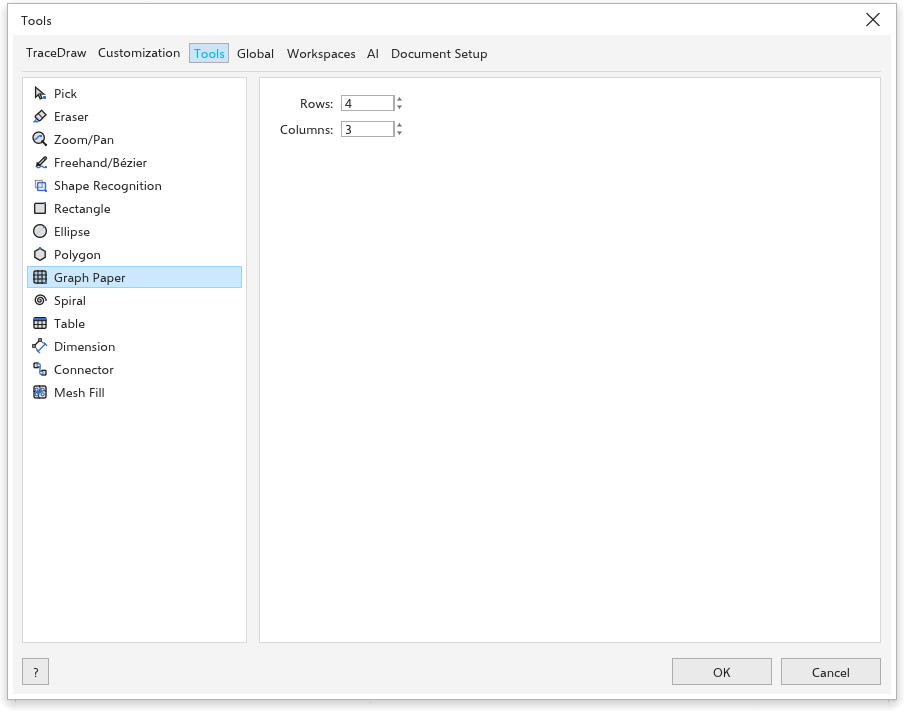
Rows and Columns of the grid.
Spiral
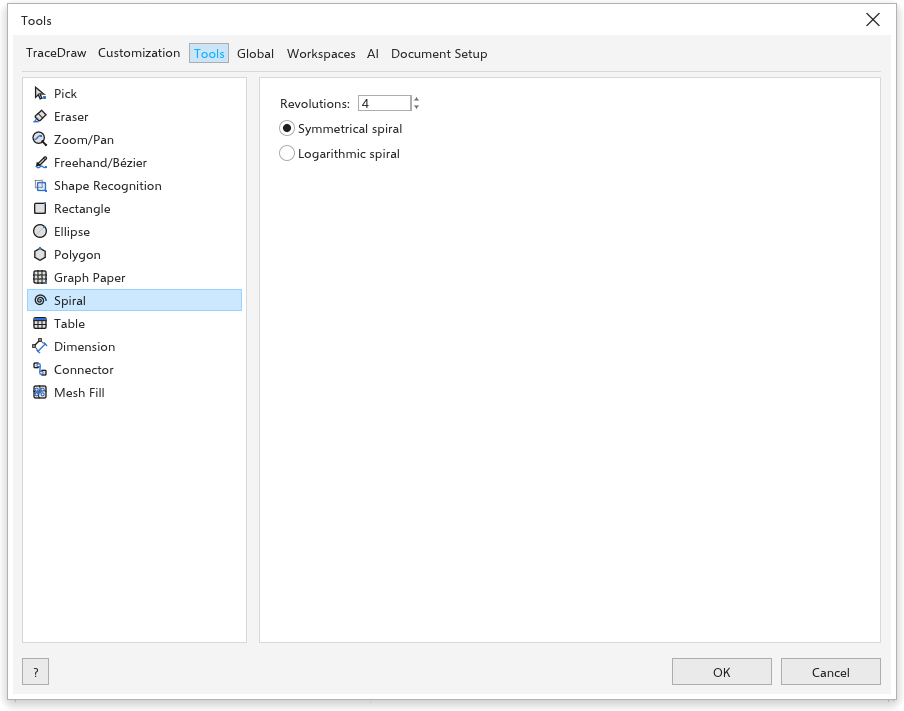
Revolutions, and Symmetrical spiral or Logarithmic spiral.
Expansion: How fast a logarithmic spiral widens: 1 is almost even, 100 widens fastest. The spiral the tool draws with these settings.
Table
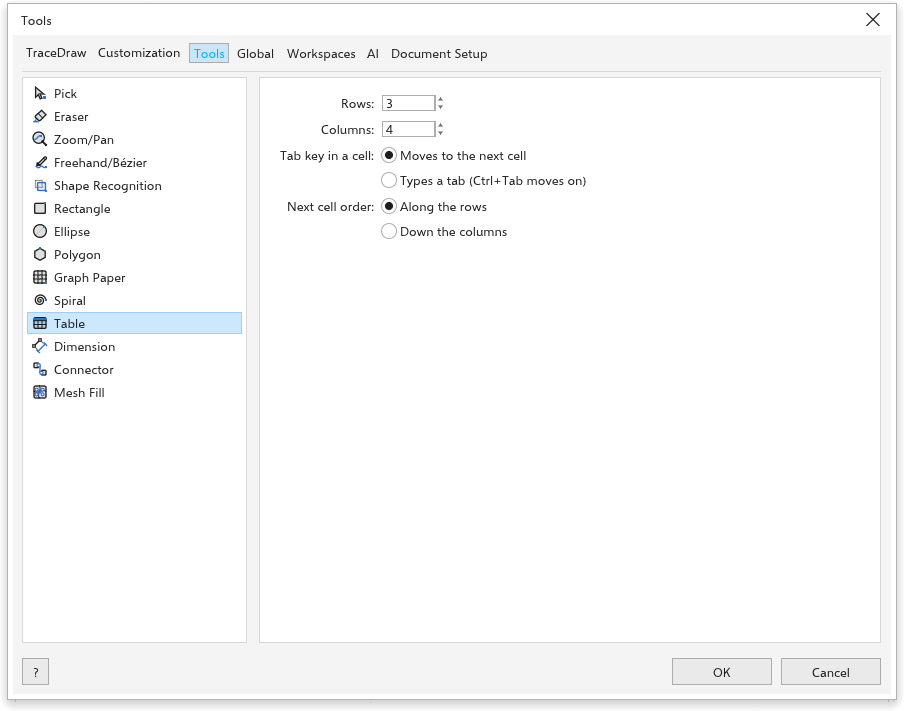
Rows and Columns of new tables.
Dimension
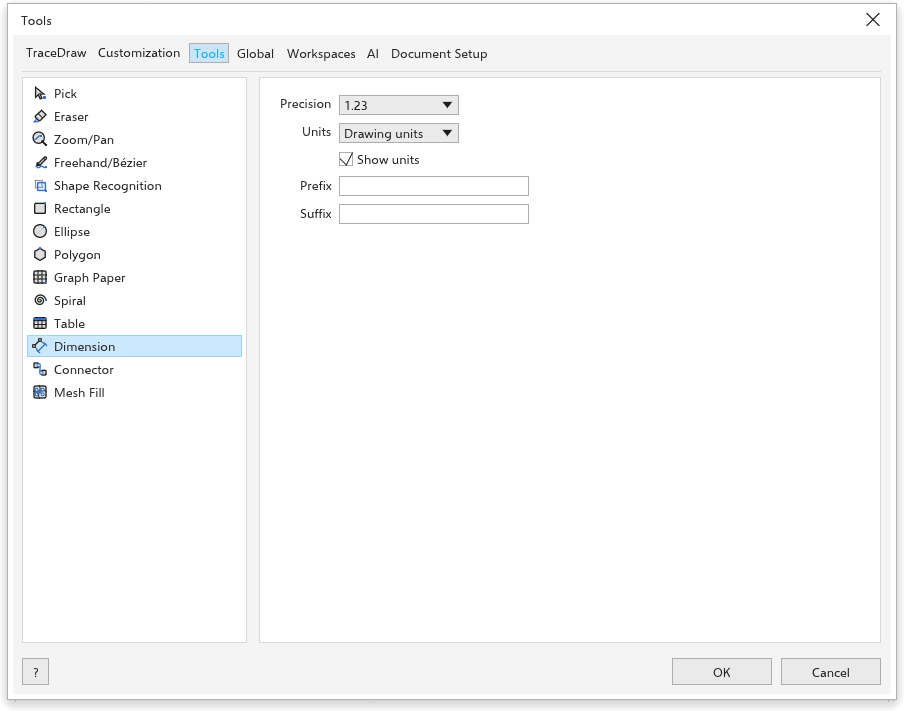
How the label of new dimensions reads: Precision, Units, Show units, Prefix and Suffix. Dimensions already drawn keep their label; select one and use the property bar to change it.
Style: Decimal / Fractional. Decimal shows lengths with decimals; Fractional shows them in halves, quarters and so on, down to 64ths as the precision rises.
Angular Dimension
Precision, Show units, Prefix and Suffix of new angular dimensions. Angular dimensions measure in degrees.
Connector
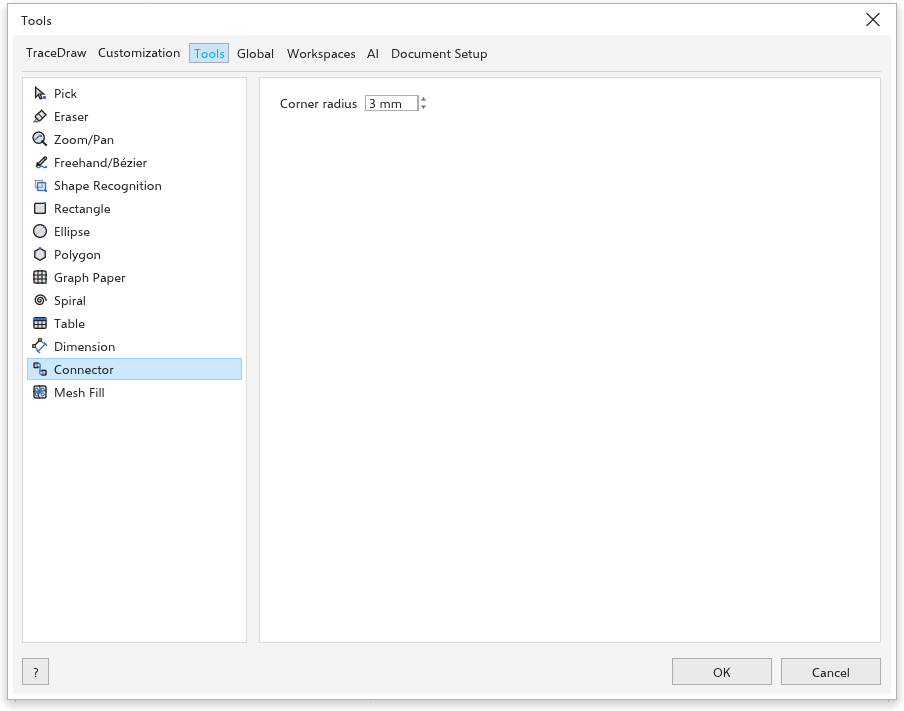
Corner radius of new rounded connectors (3 mm at first).
Route distance from object: How far right-angle connectors run straight out of an object before they turn; 0 turns halfway.
Use geometric anchor points as snapping points: An object's own nodes (a rectangle's corners, for example) are anchors for connectors too, besides the middles of its sides.
Mesh Fill
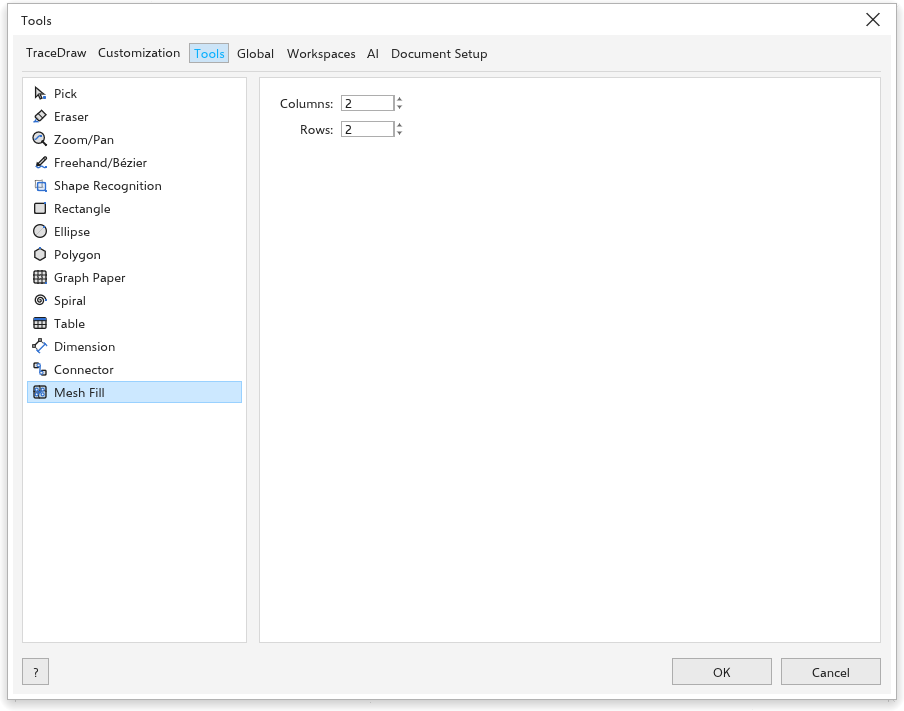
Columns and Rows of the grid a new mesh fill starts with (2 by 2 at first).