
ໜ້ານີ້ຍັງບໍ່ໄດ້ແປເທື່ອ ແລະ ຖືກສະແດງເປັນພາສາອັງກິດ.
About TraceDraw and updates
TraceDraw is free and open source. This page explains how to see which version you have, how to get a newer one, and where to ask for help.
The About box
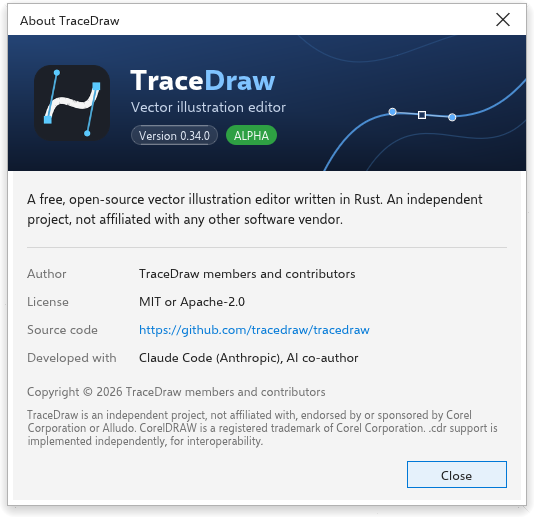
Choose Help > About TraceDraw to see the version you are running, the author, the license, a link to the source code and what the program is built with. Press Close, Enter or Esc to close it.
Checking for updates
On the desktop, TraceDraw can tell you when a newer version is released.
To check now:
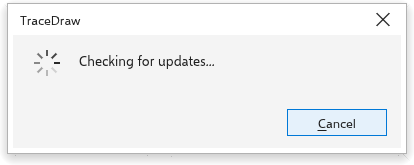
- Choose Help > Updates.
- TraceDraw asks the project's release page for the latest version and says whether it is newer than yours. Test builds and nightly builds are never offered.
- When a newer version exists, choose what to do:
- Download opens the download of the file for your system (the installer or the portable archive on Windows, the disk image for your Mac's processor, the AppImage or the archive on Linux). Your system's installer then does the installing.
- Release notes opens the list of changes of that version.
- Skip this version stops offering that version.
- Close closes the box.
When a newer version is known, a card opens in the middle of the window when TraceDraw starts, with the two version numbers and Update now, so you can update without opening the menu. What's new opens the release notes and Dismiss closes the card until the next start. Nothing is downloaded until you choose Update now. Once you do, the card shows the same steps as the Updating TraceDraw window described below, with Cancel while the file downloads and Restart Now when the update is ready.
When your copy can update itself, the box also offers Install, so you do not have to uninstall anything first. That is the case for every copy that has a download: the Windows installer and portable zip, the Mac app, and the Linux AppImage, archive and .deb.
Install opens the Updating TraceDraw window, which shows the two version numbers and each step as it happens:
- Downloading: a bar fills up with the percentage done, and the line under it gives the megabytes downloaded, the speed and, once it can be estimated, about how long is left. Cancel stops the download at once and deletes what was downloaded; nothing is changed. Closing the window lets the download go on, and the update card shows its progress.
- Checking the download: TraceDraw makes sure the file is complete and genuine (its SHA-256 digest must match the release's).
- Installing: the new version is put in place. This step cannot be cancelled half way.
When it is done, a green check mark says TraceDraw is ready, with Restart Now and Later:
- on the Windows installer, Restart Now closes TraceDraw (asking about drawings with unsaved changes), the installer runs over this copy and keeps your settings and file associations, and the new version starts by itself;
- on the Windows portable zip, the program and its files were replaced in place, the settings folder untouched; Restart Now opens the new version;
- on a Linux
.deb, Restart Now closes TraceDraw, the system asks for your administrator password, installs the package and TraceDraw starts again (the old version starts if you cancel the password); - on a Linux archive (tar.gz), the program was replaced in place; Restart Now opens the new version;
- on a Mac, the TraceDraw app was replaced in place; Restart Now opens the new version;
- on a Linux AppImage, the new file took the place of the old one; Restart Now opens the new version.
Choose Later to keep working: the new version then runs the next time you open TraceDraw (on Windows, the downloaded installer is not run until you choose Restart Now; on a .deb, the downloaded package is not installed until then). If anything goes wrong, the old version stays as it was and the window says what happened in plain words (for example that the download server could not be reached, or that the download was damaged), with Try Again and Download from the website. Copies without a download (other system packages, Flatpak, Snap) keep Download.
If the check fails (for example without an internet connection), the box says so and offers the releases page.
Checking automatically
Tools > Options > Global, page General, has a setting to check for updates at start. It is on at first: once a day, TraceDraw checks quietly when it starts and only speaks up when a newer version that you have not skipped is out.
The first time TraceDraw starts, it asks whether to check for updates: Always check or Never check. Until you answer, TraceDraw makes no connection on its own. The answer sets this option, so you can change it here at any time.
The copy installed from the Microsoft Store and the Android app are updated by their store: they never check GitHub, Help > Updates opens their store page, and the options have no update check. Every other installation downloads the file made for its processor and for how it was installed (installer, portable zip, AppImage, .deb, archive or disk image).
The Welcome Screen
The Welcome Screen is the first tab when TraceDraw starts. From it you can create a drawing, open one of the drawings you used last (each shown with a thumbnail; Clear list forgets them), start from a template, read the news and find learning material. When a page is taller than the window (a long list of recent drawings), it scrolls with the mouse wheel or its scroll bar; the row of tabs at the top stays in place. Choose Help > Welcome Screen to bring it back. Help > Video Tutorials, Getting Started and User Guide open its learning page, and What's New? its news.
Community and support
- Help > Community opens the project's discussion forum, where you can ask questions and share ideas.
- Help > Support opens the issue tracker, where you can report a problem.
- Help > Notifications opens the options where TraceDraw's messages are set.