
ໜ້ານີ້ຍັງບໍ່ໄດ້ແປເທື່ອ ແລະ ຖືກສະແດງເປັນພາສາອັງກິດ.
Customization options
Tools > Options > Customization sets the look of the interface, your own keyboard shortcuts, which bars show and how the color palette behaves.
Appearance
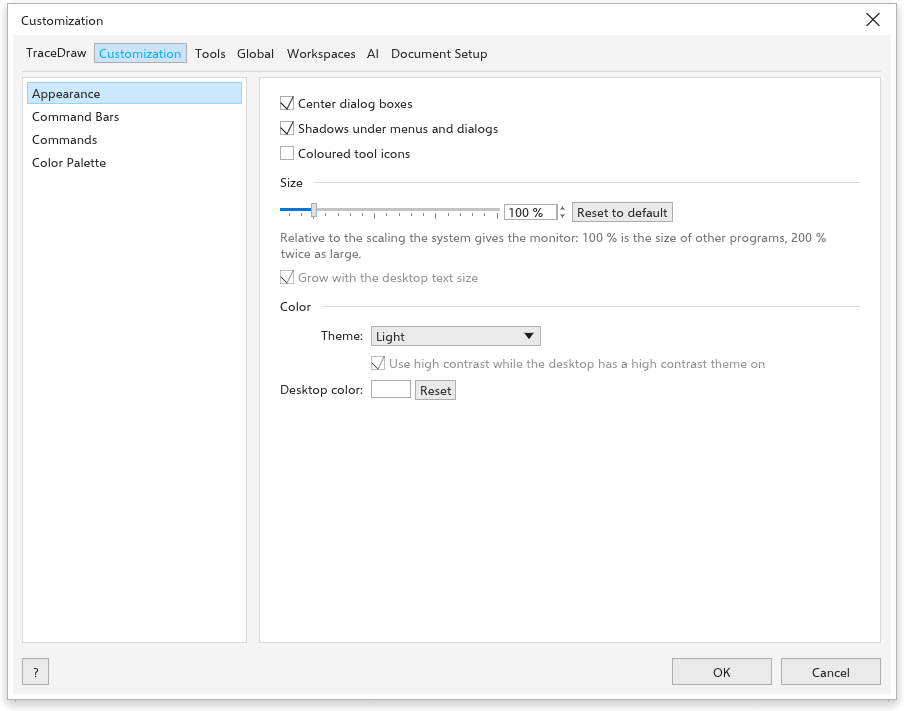
- Center dialog boxes: dialog boxes open in the middle of the window; off, they open where you left them.
- Shadows under menus and dialogs (fewer shadows help slower graphics).
- Coloured tool icons: each group of tools gets a color of its own.
- Panel tabs: icons only: the panel tabs at the window's sides show their pictures alone, the name in the tip. Off, each tab shows its picture and name, and a column with more tabs than fit slides.
- Size: how large menus, bars, icons and panels are, relative to the scaling your system gives the monitor (100% at first). Reset to default goes back to 100%. The interface size never changes the size of your drawing. Grow with the desktop text size (now {n} %) makes it grow with the desktop text size.
- Color: the Theme (Light, Medium Light, Medium Dark, Dark or High Contrast), Use high contrast while the desktop has a high contrast theme on, and the Desktop color around the page. The button at the right end of the status bar switches between light and dark.
Commands
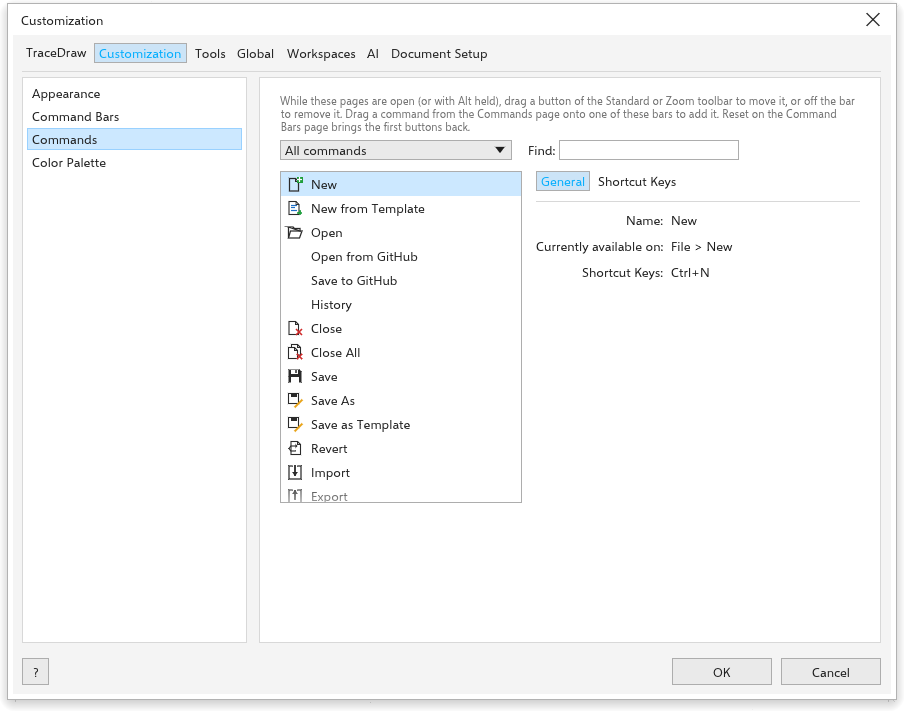
The page lists every command of the menus, with its shortcut, and the tool keys. Type in Find to filter the list.
To give a command your own shortcut:
- Click the command's shortcut button.
- Press the keys, such as Ctrl+Alt+K. Esc stops waiting.
Your shortcuts come before the built-in ones: when you take a key another command uses, the page says which command lost it. The menus show your shortcut. The x beside a shortcut removes it, and resetting to the defaults removes them all. Tool keys are a letter or Shift and a letter. See Keyboard shortcuts.
A command can have several shortcuts: a new key joins the ones it has (a built-in key keeps working beside it), and each key has its own delete button. The buttons of the bars that run a menu command (New, Open, Save, Undo, Zoom In and others) take shortcuts too, the same keys as their menu command, and so do rows the menus show only at times (such as Finish Editing Contents). A Toolbar buttons list holds every button of the Standard and Zoom toolbars: drag a button you removed from a bar back onto it from there.
A command dragged onto a toolbar shows its picture there, or its name when it has none. On the General tab, Icon shows the command's picture: Choose... opens the pictures of the other commands and of the tools, and a click gives the command that one, in the menus and on the toolbars; Reset to Default gives it its own back.
Command Bars
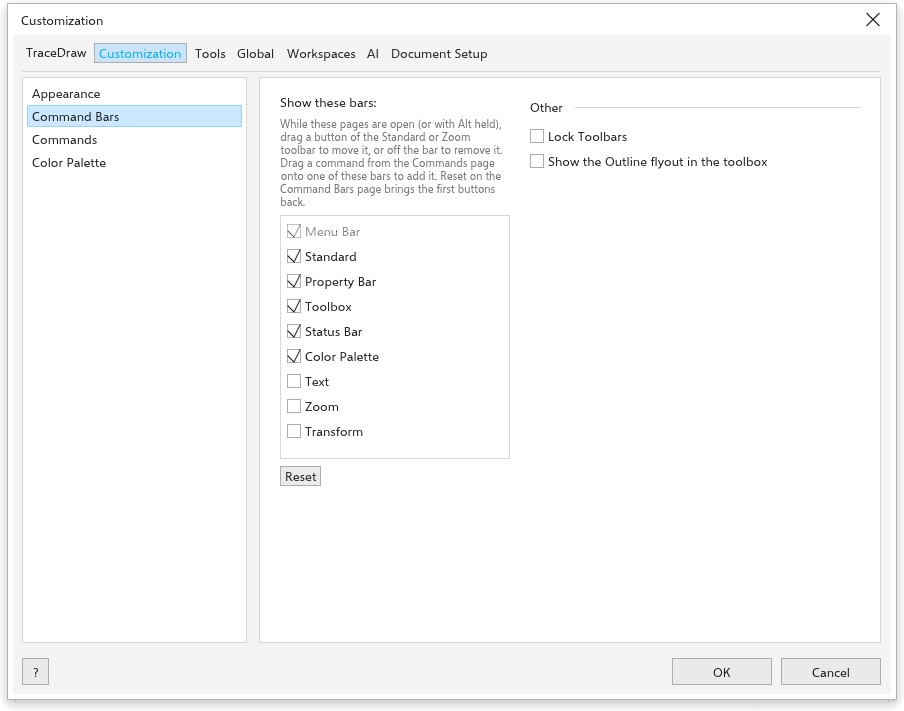
Show these bars Menu Bar, Standard, Property Bar, Toolbox, Status Bar, Color Palette, and the Text, Zoom and Transform toolbars. Reset puts the bars back. Under Other: Lock Toolbars and Show the Outline flyout in the toolbox.
While these pages are open (or with Alt held), drag a button of the Standard or Zoom toolbar to move it, or off the bar to remove it. Drag a command from the Commands page onto one of these bars to add it. Reset on the Command Bars page brings the first buttons back.
Color Palette
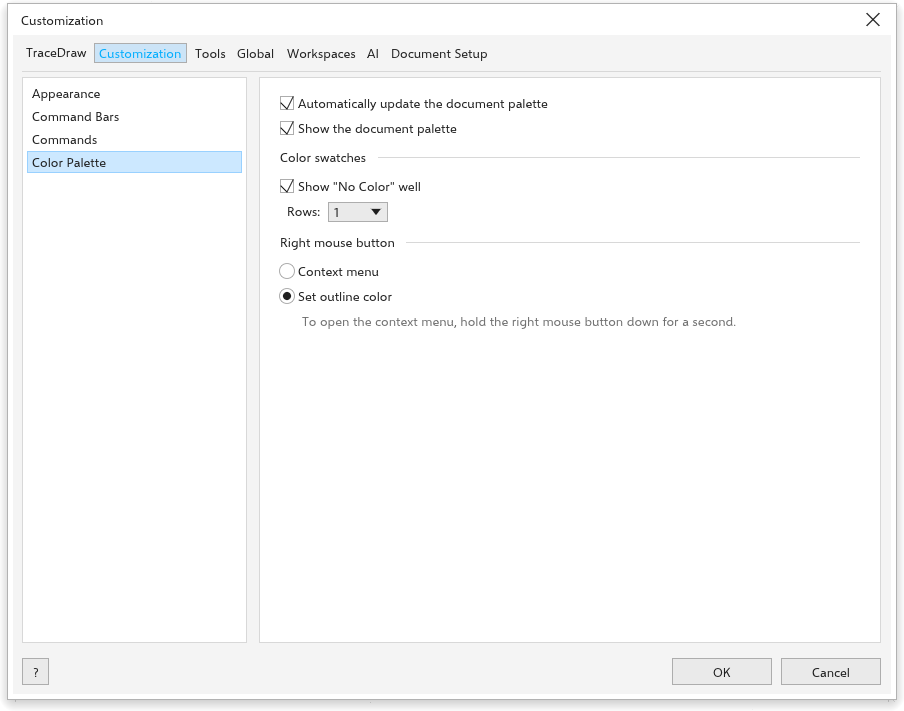
- Automatically update the document palette and Show the document palette (both on).
- Position (Top, Bottom, Left, Right or Floating), Rows (1 to 8, or Fit) and Swatch size (Extra Small to Extra Large) of the default palette, as its own menu sets them: a floating palette takes the rows at its length. The position stays while the toolbars are locked.
- Color swatches: Show "No Color" well (on), and what the Right mouse button does: Set outline color (at first) or open the Context menu.
See Color palettes.