
ໜ້ານີ້ຍັງບໍ່ໄດ້ແປເທື່ອ ແລະ ຖືກສະແດງເປັນພາສາອັງກິດ.
Exporting
File > Export (Ctrl+E) writes the drawing, a page or the selection in another format. The Export dialog box shows a preview on the left and the settings on the right.
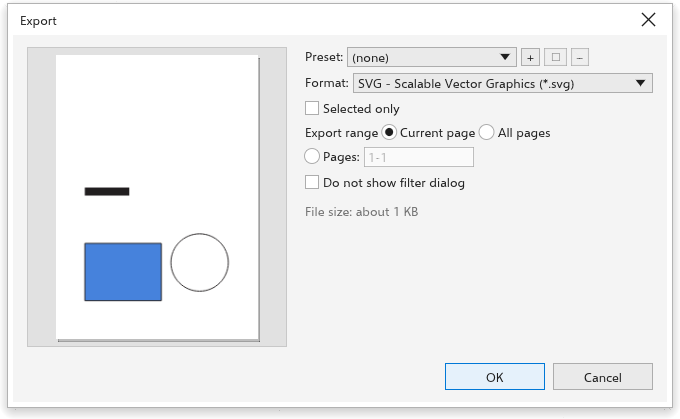
To export
- Choose File > Export (Ctrl+E, or the toolbar button).
- In the Save dialog box, choose the folder, type the name and choose the format under Save as type. Every format is offered, the one you used last first; the extension of the name decides the format. The folder you exported to last is opened.
- The Export dialog box opens with the options of that format, its title naming the file (such as "Export Poster.png"). Choosing a format brings back the settings you used for it last. Choose a Preset to start from saved choices, or another format: the file's extension changes with it. The common formats (JPG, PDF, AI, PNG) are first.
- Set the format's options (below).
- Tick Selected only to export only the selection, or All pages to export every page. For PDF and PostScript, All pages starts ticked; untick it to export the current page alone.
- Click OK to write the file. Cancel writes nothing.
In the browser, which has no Save dialog box, the Export dialog box comes first and OK downloads the file; on Android, OK opens the system's picker to choose where to save.
The dialog box estimates the size of the file and, for bitmap formats, says what comes out, such as "1240 x 1754 pixels, 150 dpi, sRGB".
Skipping the options
Tick Do not show this dialog again at the bottom of the Export dialog box and click OK: the next exports write the file right after the Save dialog box, with the options of the last export, and the status bar says "Exported with the last options". To see the options again:
- hold Shift while choosing File > Export or clicking the toolbar button, or choose File > Export with Options (Ctrl+Shift+E), and untick the box; or
- untick Export without showing the options (use the last ones) on the File Formats page of the global options (clicking the status bar's note opens it).
Format options
| Format | Options |
|---|---|
| PNG, WebP, GIF | resolution (or the size in pixels), transparent background; WebP also quality |
| JPEG | resolution, quality (1 to 100) |
| BMP, TIFF, PSD | resolution |
| standard (PDF 1.4, PDF/X-1a, PDF/X-3 or PDF/X-4), bleed, output condition for PDF/X | |
| PDF, AI | title and tags |
| SVG, EPS, AI, DXF, HTML, EMF, WMF, PLT, PS, PRN | none |
Size of bitmaps
For bitmap formats, Size has a width, a height and their unit (px, mm, cm or in); the other side follows the page's proportions.
- In pixels, typing a width or height sets the resolution that gives it, so you can type the size of an icon (32 x 32 pixels) directly.
- In a length, the size is the printed size: typing a width or height scales the artwork at the resolution you set, from 1 % to 10000 %. A button with the scale (such as "200 %") shows when it is not 100 % and puts it back.
PNG, JPEG and BMP files record their resolution, so they open at the size you chose. PostScript and PRN files hold every exported page.
Presets
The Preset list holds every preset you saved, each with its format in brackets, such as "Web PNG (PNG)". Choosing a preset of another format switches the dialog to that format; changing the format leaves no preset chosen. + saves the current choices under a name (the same name replaces that preset), the pencil renames the chosen preset and - deletes it.
Starting choices
The starting choices are set on the File Formats page of the global options, where Remember the settings of the last export (on at first) makes the dialog start with the format, resolution and quality of the last export, in the next session too. Export Presets has presets for the web and for office documents; see Exporting for the web. For PDF files with bookmarks and security, use Publishing to PDF.