
Paste Special
Edit > Paste Special chooses how the content of the clipboard comes into the drawing, when it could come in more than one way: for example text copied from another program can become a text object, and an SVG copied from a web page can become editable shapes or a picture.
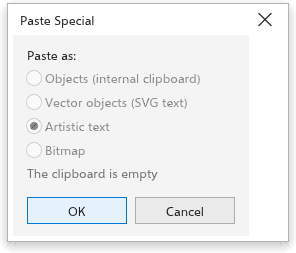
To paste in another form
- Copy something, in TraceDraw or in another program.
- Choose Edit > Paste Special.
- Under Paste as, choose one of the forms the clipboard offers:
- Objects (internal clipboard): objects copied in TraceDraw, as they were;
- Vector objects (SVG text): SVG text, turned into shapes you can edit;
- Bitmap: an image, as a bitmap;
- Artistic text: plain text, as a line of text.
- Click OK.
When the clipboard holds nothing that can be pasted, the dialog box says The clipboard is empty.
The ordinary Paste (Ctrl+V) pastes in the first form available, and Paste in View (Ctrl+Shift+V) pastes in the middle of the window.
On Windows, copy and paste also work with CorelDRAW in both directions. Objects copied in CorelDRAW paste as objects, with their colors, outlines, text and fonts: TraceDraw reads the copy data CorelDRAW leaves on the clipboard when it is CMX or CDR data, and otherwise the metafile or PDF copy beside it. Objects copied in TraceDraw go to the clipboard as an enhanced metafile and a PDF, as well as SVG, so CorelDRAW and office programs paste them as objects too.