
The Color panel
The Color panel (Shift+F11) mixes a color and applies it to the fill or outline of the selection. The Outline Color tool (Shift+F12) opens it too. Open it from Window > Panels.
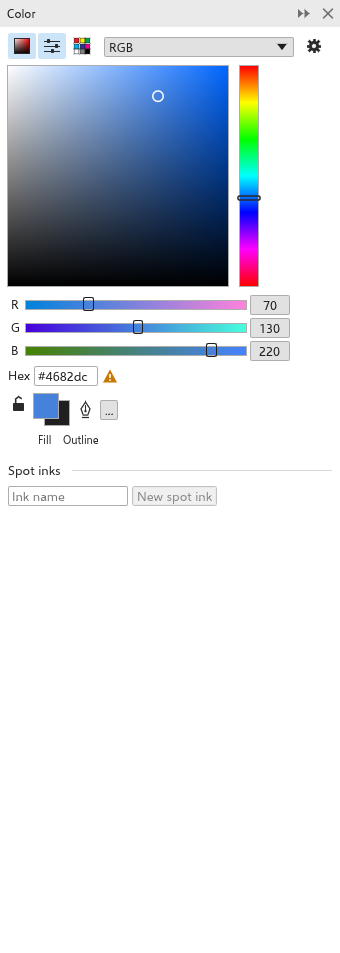
Choosing a color
- Select objects. The panel starts from the fill color of the first one.
- Mix the new color in one of the views:
- Color viewers: click or drag in the square to set the saturation (left to right) and brightness (bottom to top), and in the strip beside it to set the hue;
- Color sliders: one slider per component of the Model: RGB, CMYK (at first), HSB, HSL, Lab, Grayscale or YIQ;
- Color palettes: the swatches of a palette.
The three buttons at the top show or hide each view; any mix can show. You can also type a #rrggbb value.
- Click Fill or Outline at the bottom of the panel to apply the new color. The lock (Lock fill and outline) ties fill and outline together, so either button applies the color as both. The "..." button (More actions) drops the other actions: No Fill, No Outline, Swap Colors, Add to Document Palette, Add to Custom Spot Colors and Add to Color Styles Palette.
The old color and the new one show side by side. When the new color cannot be printed exactly with CMYK inks, the panel shows a warning.
Sampling a color
Click Eyedropper and click anywhere on the drawing to take the color there. Then click Use sampled {c} to make it the new color. See also Eyedroppers.
Spot inks
Under the buttons, Spot inks lists the spot inks of the drawing; see Spot colors.