
Opening and saving drawings
TraceDraw saves drawings in its own format, .tdraw, which keeps everything, and can also save .cdr files. It opens many other formats; see Supported file formats.
Opening a drawing
- Choose File > Open (Ctrl+O), or click Open on the standard toolbar.
- Choose the file and confirm.
The drawing opens in a new tab. To open a drawing you used recently, use File > Open Recent, the arrow of the Open button, or the list on the Welcome Screen, which shows each drawing's name, folder, size and last edit in a table when the window is wide enough; Clear list empties the list. To take one drawing off the Welcome Screen list, point at it and click the x at its right, or right-click it and choose Remove from list; the file itself stays where it is. File > Import (Ctrl+I) instead adds the content of a file to the drawing that is open; see Importing files.
You can also drag files from your file manager onto TraceDraw. A drawing (such as a .tdraw or .cdr file) let go over the title bar, the menus, the toolbars or the document tabs opens in a tab of its own; let go over the drawing window, it is imported into the open drawing. The frame and the label shown while you drag say which will happen. Where the system does not say where the pointer is (Linux, macOS), drawings open in a tab and pictures are imported.
A drawing opened from the system while TraceDraw runs (a double click in the file manager or in Finder, Open with, or Share on Android) opens in a tab of the running window, which comes to the front. The browser version installed as an app does the same for .tdraw, .cdr, .svg and .pdf files in browsers that let installed apps open files.
How a drawing is first shown (the whole page, its objects, the page's width, real size, a zoom level of your own, or the page, place and zoom it had when it was saved) is set by View when a drawing opens on the Display page of Tools > Options > TraceDraw.
Notes after opening
When some objects of an opened file could not be read, or the drawing uses fonts that are not installed on your computer, a message says so after the file opens:
- For objects that could not be read, it gives their number. A Report button opens a new issue for the file on the project's issue tracker, so the problem can be fixed.
- For missing fonts, the Missing Fonts dialog box lists them, each with the installed font that draws it, and lets you choose another one for this session or replace it in the drawing. See Missing fonts.
Tick Do not show this message again to stop these messages. You can turn them on again on the Warnings page of Tools > Options > Global.
Saving a drawing
Choose File > Save (Ctrl+S) to write the drawing back to its file. A new drawing, or one opened from a format TraceDraw only reads, has no file yet, so Save opens the Save Drawing dialog box.
Save As
File > Save As (Ctrl+Shift+S) saves the drawing under another name, in another folder or in another format.
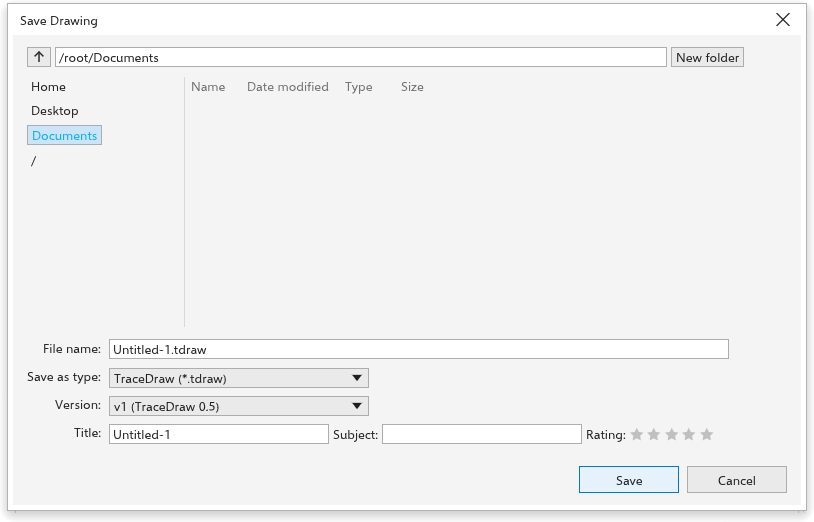
To save a drawing under a new name:
- Choose the folder. The list on the left has shortcuts to Home, Desktop, Documents, Downloads and Pictures, and to the drives. Up one level goes to the folder above; you can also type a folder in the path bar. Double-click a folder of the list to open it; click a file to take its name.
- Type the File name. The extension of the chosen type is added.
- Choose Save as type: TraceDraw (
*.tdraw) or CDR files (*.cdr). - Choose the Version. For TraceDraw files it is the version of the format, newest first. For
.cdrfiles it is the version of the file, from 27 down to 7; an older program can only open a version as old as itself or older. The version you choose stays with the drawing, so Save writes it again without asking. - Choose what goes into the file with the drawing:
- For
.cdrfiles from version 16, Embed colour profile stores the drawing's CMYK profile in the file. - Embed fonts (off at first) stores the fonts the text uses, when their licence allows it, in TraceDraw files and in
.cdrfiles from version 16. The box shows how much the fonts add to the file. Tick it for drawings that go to a computer that may not have the fonts. A note under the box names any font the file will not carry and why: its licence forbids embedding, or there is no font file to embed (the text is drawn by a stand-in font, or the font is in a collection file). - For TraceDraw files on the desktop, Package saves the drawing in a folder of its name with the pictures it links to, the font files and a report, and Include a PDF adds a PDF. See Packaging a drawing.
- For
These choices are kept for the next time.
- Optionally fill in Title, Subject and a Rating (click the lit last star again to take it off). They are the drawing's properties, also shown in Document info.
- Click Save or press Enter. If the file exists, TraceDraw asks whether to Replace it.
The dialog box starts in the drawing's folder, else in the folder you saved to last, else in your documents folder. A drawing opened from a .cdr file or another format starts in that file's folder with its name, so saving in the same format replaces it.
In the file list, New folder makes a folder and lets you type its name at once; F2 or a right-click renames a folder or file; typing letters jumps to the entries that start with them, and Enter opens the folder picked. A folder typed in the path bar is taken without pressing Enter first.
Other ways to save: File > Save as Template saves a template (see Templates), Export writes other formats (see Exporting), Export as PDF writes a PDF (see Publishing to PDF), Send To saves a PDF to your desktop or documents folder or attaches it to an email, Package puts the drawing, its pictures and its fonts into one folder (see Packaging a drawing), and GitHub keeps drawings in a GitHub repository (see GitHub). Revert goes back to the version last saved.
Drag a drawing's tab along the strip to change the order of the tabs: the other tabs move aside to show where it will go.
Closing drawings
Choose File > Close (Ctrl+F4), click the close button on the drawing's tab, or middle-click the tab. Close All closes every drawing, and Exit (Alt+F4) closes TraceDraw.
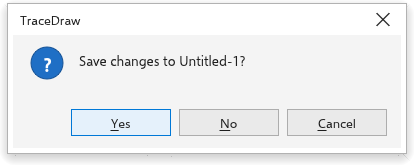
When a drawing has unsaved changes, TraceDraw asks whether to save them first: Yes saves (asking for a name if the drawing has no file yet), No closes without saving, and Cancel keeps the drawing open. When several drawings have changes, it asks about each one; Cancel stops.
Auto-backup and recovery
TraceDraw keeps backups of your open drawings while auto-backup is on (the Save page of Tools > Options > TraceDraw sets how often and where; every 20 minutes at first). Closing TraceDraw normally removes them.
If TraceDraw ended without closing, for example after a power cut, it offers the backups the next time it starts: Recover opens each one as an unsaved drawing (Save then asks where to save it), and Discard leaves the backups in their folder. Two TraceDraw windows running at once never offer each other's drawings. When the system quits TraceDraw without asking about unsaved drawings (the Quit of the macOS menu, logging out) or sends the Android app to the background, their backups are written at once, and the next start offers them.
In the browser version the backups are kept in the browser's storage for the site, a folder of their own for each tab. Closing or reloading a tab with unsaved drawings asks first, and the next visit offers what the tab left; Discard deletes those backups.