
Color management
Screens show colors with red, green and blue light; printers mix cyan, magenta, yellow and black inks. Color management uses color profiles to describe each device, so a color keeps its look from the screen to the printed page. The settings are in Tools > Color Management, the Color Management Settings dialog box. Nothing changes until you click OK.
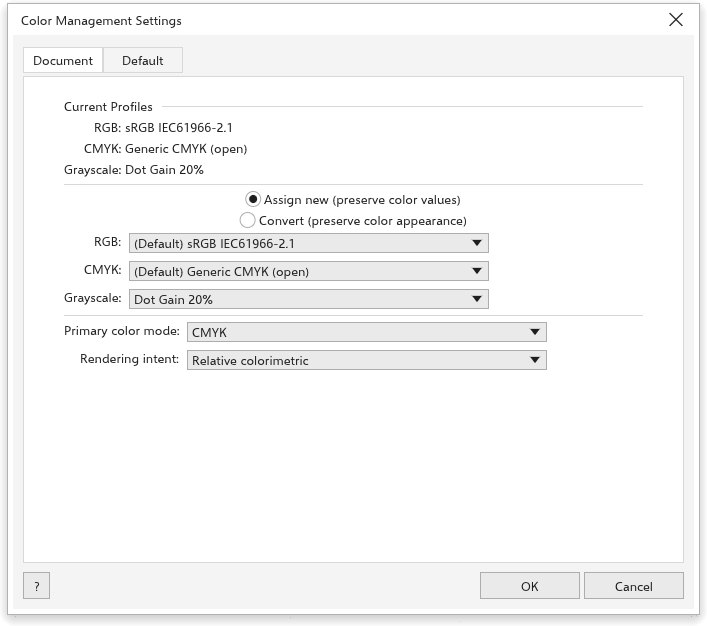
The drawing's profiles
The Document tab sets the profiles of the active drawing.
- Current Profiles shows the RGB, CMYK and grayscale profiles the drawing uses now.
- Choose how a new profile is applied:
- Assign new (preserve color values): the color values stay and their look changes to the new profile;
- Convert (preserve color appearance): the CMYK colors are converted so they look the same in the new profile.
- Choose the RGB profile, CMYK profile and Grayscale profiles. Each list has the default profiles, then every profile found on your computer. Load color profiles adds profile files (
.icc,.icm). - Primary color mode: CMYK or RGB.
- Rendering intent: how colors that cannot be shown are brought in: Relative colorimetric (at first), Perceptual, Saturation or Absolute colorimetric.
The CMYK profile goes with the drawing, also into .cdr files from version 16.
Defaults for new drawings
The Default tab sets what new drawings use, and how colors are converted.
- Preset: ready-made settings for North America, Europe, Japan, or web and screen work. Save preset saves your own settings under a Preset name; Delete preset removes one.
- The default RGB profile, CMYK profile and Grayscale profile, Primary color mode and Rendering intent.
- Color conversion:
- Color engine: TraceDraw ICC engine, which uses the profiles, or Built-in formulas;
- Preserve pure black: colors of black ink only stay black ink only when converted;
- Map gray to CMYK black (on at first): grays converted to CMYK use black ink only;
- Black point compensation (on at first): keeps the darkest shades apart.
- Open policy: what happens to the profile of a file you open, for RGB, CMYK and grayscale: Use embedded color profile, Assign default color profile or Convert to default color profile. Warn on color profile mismatch and Warn on missing color profile show a message in the status bar when a file has another profile or none.
- Import and Paste policy: Convert to document color profile or Assign document color profile, for what you import or paste.
- Spot color definition: whether spot colors are defined by Lab values, CMYK values or RGB values.
Previewing print colors
View > Proof Colors, or the proof button at the right end of the status bar, shows the drawing as it would print: colors that CMYK inks cannot print look duller. The Color panel also warns about such colors.
Without loaded profiles, TraceDraw converts colors with its own model of process inks on coated paper.
To turn every color of the selection or the drawing into CMYK or RGB through these profiles, see Converting colors to CMYK or RGB.