
এই পৃষ্ঠাটি এখনও অনূদিত হয়নি এবং ইংরেজিতে দেখানো হচ্ছে।
TraceDraw options
Tools > Options > TraceDraw (Ctrl+J) sets how the program works. Choose a page from the list on the left.
General
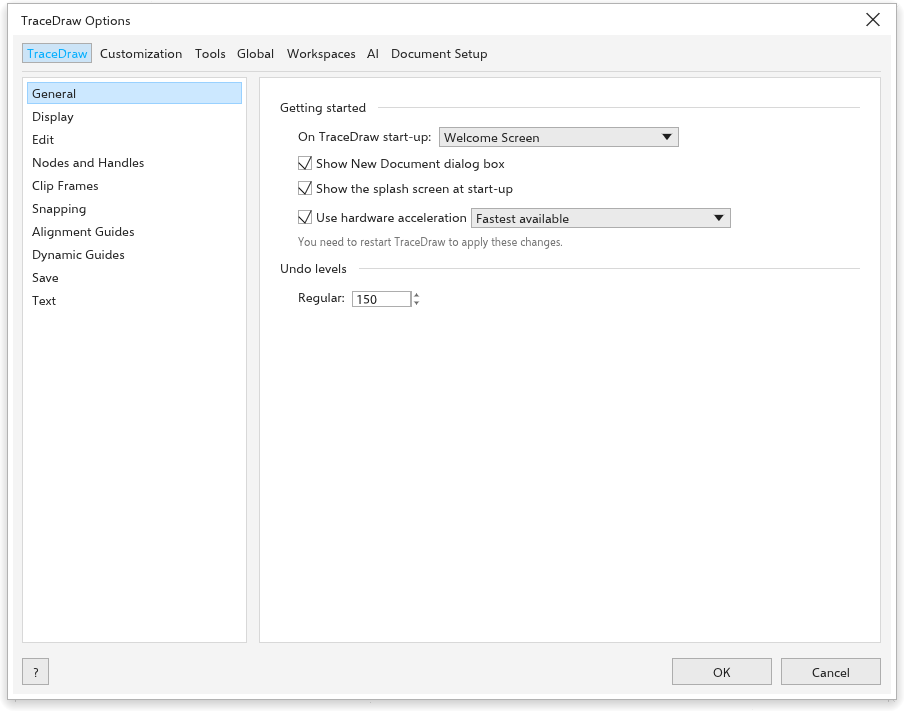
- On {app} start-up: show the Welcome Screen, start a new document, or open the last edited document.
- Show New Document dialog box (on): ask for the settings of a new drawing; see Creating a drawing.
- Show the splash screen at start-up (on).
- Use hardware acceleration (on): draw the window with the graphics card chosen beside it (Fastest available at first); off, with the computer's software renderer. It takes effect at the next start. If the window cannot open that way, TraceDraw starts again with the software renderer, then with OpenGL, and keeps the one that worked.
- Undo levels: how many steps you can undo (150 at first).
On a computer, the page also has a choice that puts Minimize, Maximize and Close buttons at the right end of the menu bar (off at first). It is for a window without a title bar, such as under a tiling window manager. With it on, dragging the empty part of the menu bar moves the window, and a double click there maximizes or restores it.
Display
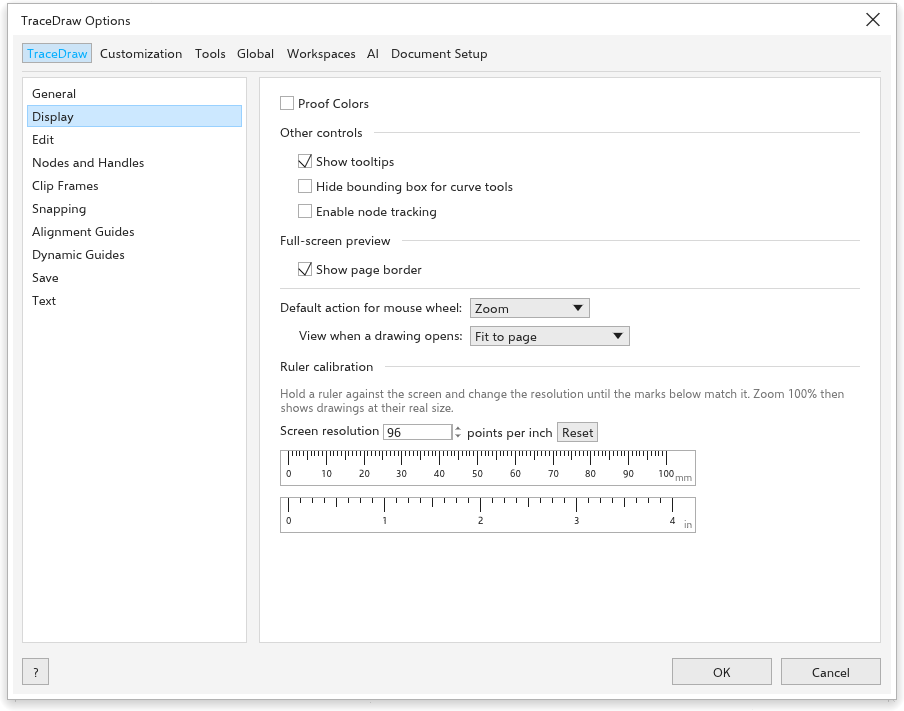
- Proof Colors: show colors as they will print.
- Show tooltips (on), Hide bounding box for curve tools and Enable node tracking (off: when on, the Pick tool can drag the nodes of a selected curve).
- Full-screen preview: Show page border.
- Default action for mouse wheel: Zoom (at first) or Scroll.
- View when a drawing opens: Fit to page (at first), Fit to objects, Page width, Page height, 100% (real size), Zoom level (a zoom of your own, typed beside the list, with the page in the middle of the window) or As saved (the page, place and zoom kept each time a TraceDraw file is saved).
- Ruler calibration: hold a ruler against the screen and change the Screen resolution until the marks match, so that zoom 100% shows real sizes. Reset puts back 96.
Edit
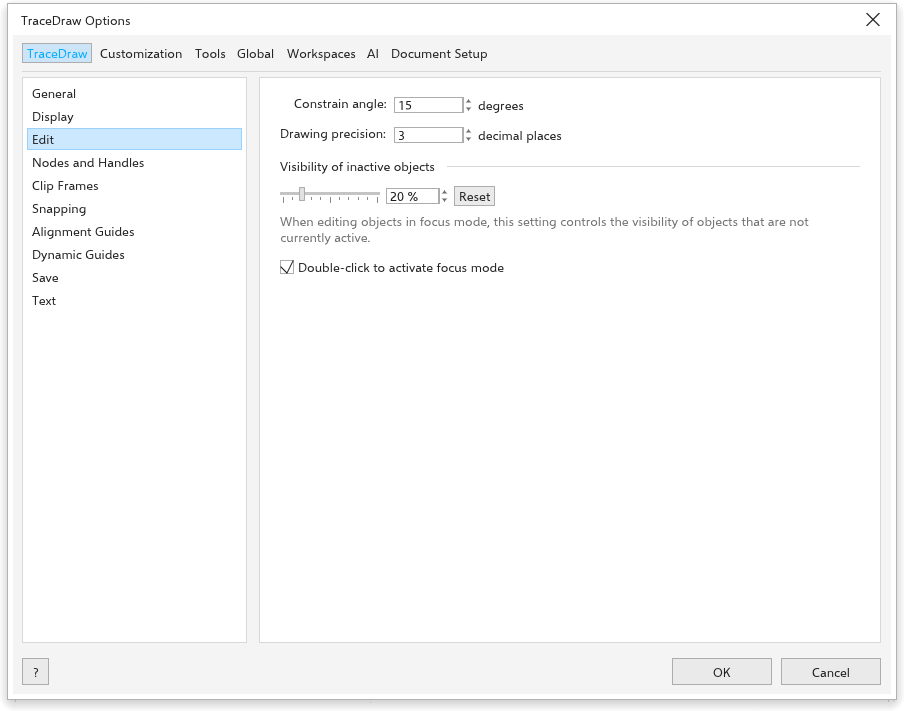
- Constrain angle: the step of Ctrl when rotating and drawing (15 degrees at first).
- Drawing precision: the decimal places on the property bar and status bar (3 at first).
- Visibility of inactive objects (20% at first) and Double-click to activate focus mode; see Focus mode.
Nodes and Handles
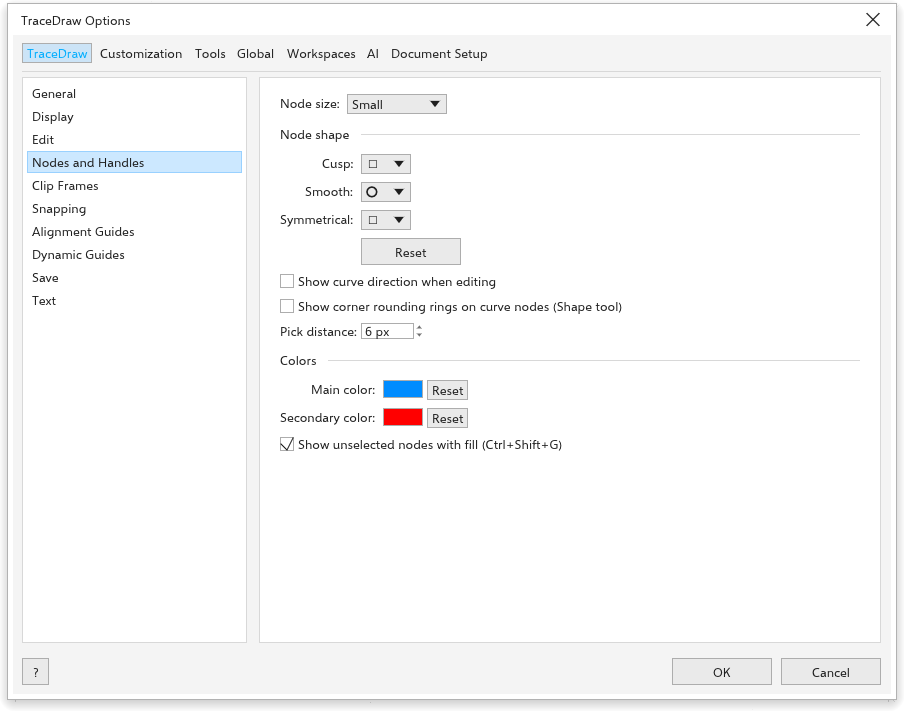
- Node size: small, medium or large.
- Node shape for Cusp, Smooth and Symmetrical nodes.
- Show curve direction when editing.
- Show corner rounding rings on curve nodes (Shape tool).
- Colors: the Main color of selected nodes and handles and the Secondary color.
- Show unselected nodes with fill (Ctrl+Shift+G).
Clip Frame
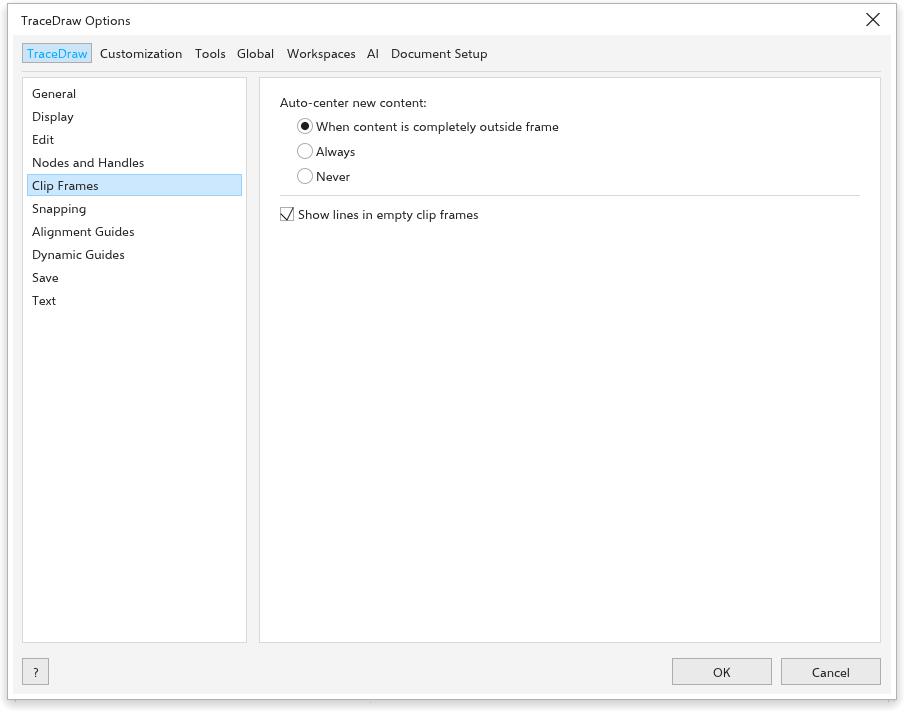
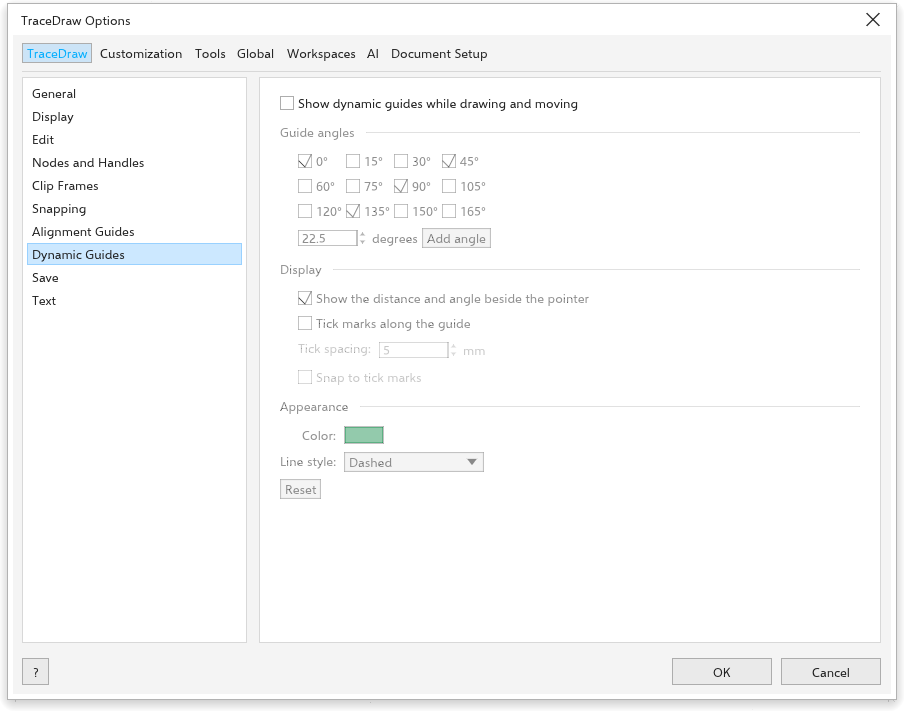
- Auto-center new content: When content is completely outside frame (at first), Always or Never.
- Show lines in empty clip frames (on).
See Placing objects inside a frame.
Snapping
- Snap to objects (Alt+Z), Snap to page, Snap to guidelines, Snap to grid, the baseline grid and Snap to pixels.
- Snapping radius (10 pixels at first).
- Show snap location marks and the Screen tip.
- Modes: the points objects snap to, with Select All and Deselect All.
See Snapping.
Save
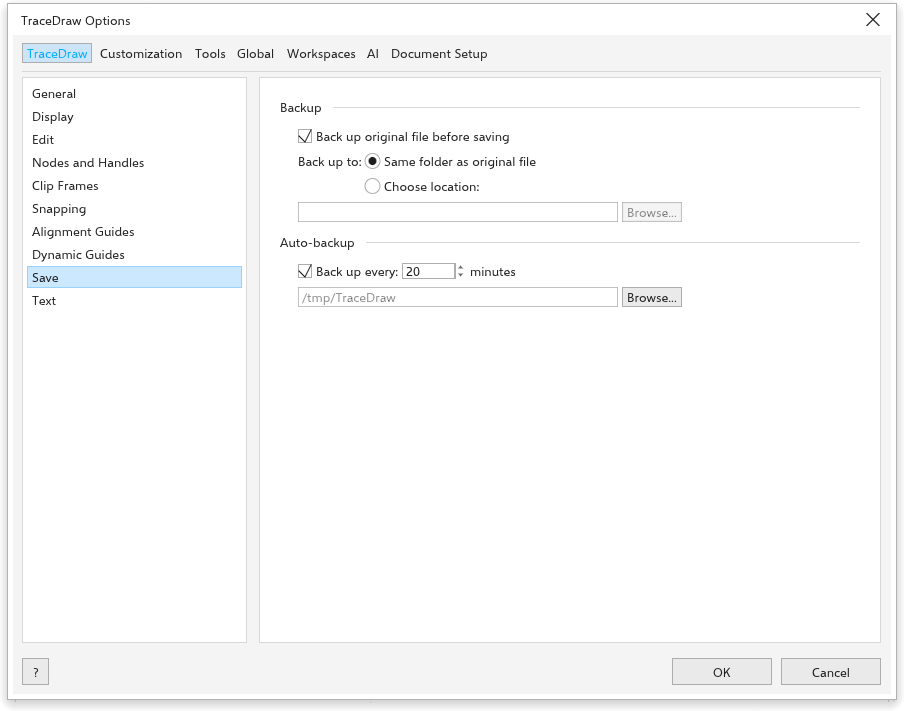
- Backup: Back up original file before saving (on) keeps the previous file as
backup_of_<name>, Back up to the Same folder as original file or a chosen place. - Auto-backup (on): Back up every 20 minutes, to a temporary folder or a chosen place. After a crash the backups are offered; see Auto-backup and recovery.
Text
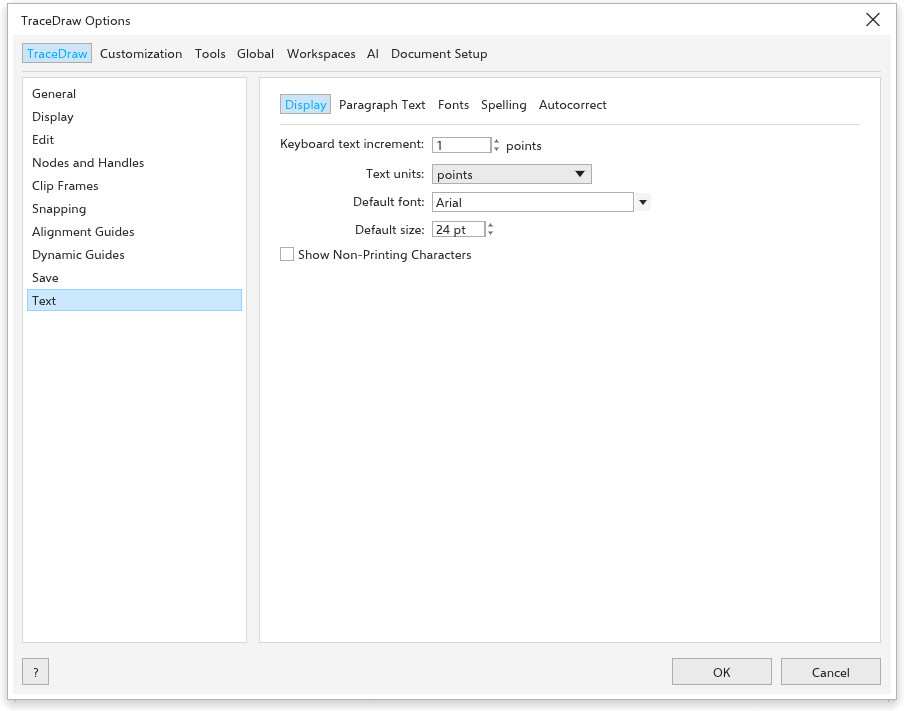
The page has five tabs.
- Display: Keyboard text increment (how much Ctrl+8 and Ctrl+2 grow and shrink the selected text, 1 point), the Default font and Default size of new text, and Show Non-Printing Characters.
- Text units pt, mm, cm, in, px…
- Paragraph Text: Show Text Frames, Use Hyphenation and the Hyphenation patterns (built-in, or a hyphenation dictionary for your language).
- Default tab spacing: where Tab goes in a paragraph without tab stops of its own (12.7 mm, half an inch).
- Fonts: Show recently used fonts at the top of the font lists, the Number of recently used fonts (5, up to 20) and the Font sample size.
- Spelling: Ignore words with numbers, Ignore words in capitals and Add corrections to Autocorrect, so a word you correct in the spell checker is corrected as you type next time; and the Dictionaries it uses, see Dictionaries.
- Autocorrect: what is corrected as you type; see Autocorrect.
Benchmark
Help > Benchmark: Measures how fast this computer is for TraceDraw: a score for the processor, the memory and the graphics, from 1.0 to 9.9.
Measures how fast this computer draws in TraceDraw, part by part. It takes a few seconds; leave the window alone meanwhile. Each score goes from 1.0 to 9.9, and the overall score is the lowest one, since the slowest part sets the pace.
To compare, change Use hardware acceleration in Options > General, restart TraceDraw and run the benchmark again.
Light zoom (for slow computers): A wheel notch zooms at once, without the glide, and the drawing is drawn again once, after the zoom stops, instead of at every step. The zoomed picture stays blurry a moment longer, but the computer works much less. Help > Benchmark turns it on when the score is low.