
لم تُترجم هذه الصفحة بعد وتُعرض بالإنجليزية.
Blends
A blend draws a series of intermediate steps between two objects, changing shape, size and color from one to the other. Use it for smooth shading, repeated patterns or a shape that turns into another.
To blend two objects
With the tool:
- Choose the Blend tool from the Effects flyout.
- Drag from the start object to the end object.
With the panel:
- Select two objects.
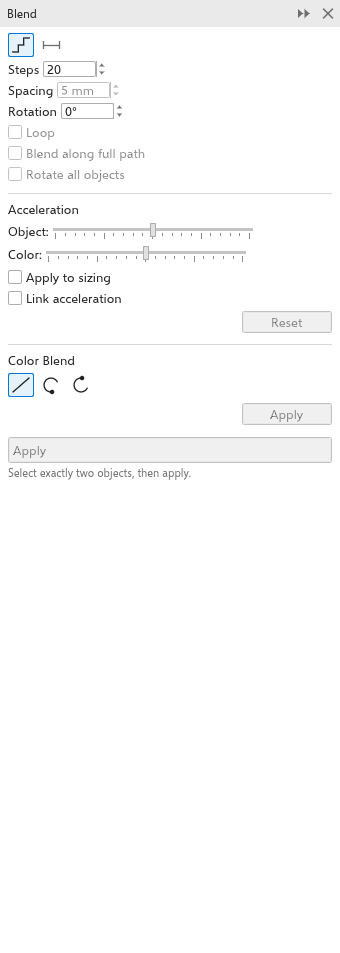
- Open the Blend panel with Effects > Blend (Ctrl+F8).
- Set the options and click Apply.
Both objects stay objects of the drawing: move, resize or recolor either one and the steps follow. Deleting the end object removes the blend.
With the Pick tool, a click on the steps between the two objects selects the whole blend, the start and end objects together, so a drag moves it anywhere as one. A click on the start or end object itself selects that object alone, to resize, recolor or edit it.
Blend settings
With a blend selected, every change on the property bar or in the panel applies at once.
- Blend steps: the number of steps (5 at first, up to 999).
- Spacing, for a blend on a path: the distance between steps; the number of steps follows from the length of the path.
- Rotation: turns the steps progressively; Loop turns them about the middle between the two objects instead.
- Acceleration: the object slider makes the steps crowd towards one end; the color slider does the same for the colors. Apply to sizing makes the object acceleration change the sizes too, and Link acceleration keeps the two sliders together. Reset puts both back to even.
- Color Blend: Direct (straight from one color to the other), Clockwise or Counterclockwise (around the color wheel).
The tool's property bar has the steps, rotation and the two accelerations.
Controls on the canvas
Pick a blend with the Blend tool (click its start or end object, or a step) to show its controls: a square on the start object, a crossed square on the end object, the line between them and two sliders on it, the object acceleration above and the color acceleration below.
- Drag a slider toward the start or the end to crowd the steps or the colors there. The blend follows live, each drag is one undo step, and the property bar follows. A slider goes as far one way as the other: at 100 % the middle step sits right by the start object, at -100 % right by the end object.
- Drag an end square to move its object, so the blend changes direction. Drop it on another object to make that object the new start or end, with the blend's settings.
The object acceleration moves the steps toward one end also when the blend follows no path. A bitmap effect on the start object keeps the blend drawn.
Blending along a path
- Select the blend.
- Click New path in the Blend panel and click a curve.
The steps follow the curve. Rotate all objects turns each step along the curve, and Blend along full path places the first and last steps at the ends of the curve.
Removing or splitting a blend
Clear blend removes the steps and leaves both objects. Break apart turns the steps into objects of their own, grouped. Object > Break Blend Group Apart (Ctrl+K, also on the right-click menu) does the same.
Saving as .cdr
A blend saved as .cdr (version 9 or later) stays a blend: the file holds the two objects and the blend record between them, so the program that opens the file shows the steps and lets you change the blend. The steps, spacing and the two objects go into the file; acceleration, rotation, a path and the colour direction come back in TraceDraw (version 14 or later), other programs start from their defaults.