
यह पेज अभी अनुवादित नहीं है और अंग्रेज़ी में दिखाया गया है।
Object styles and default properties
The Object Styles panel has two parts: the Default Properties of new objects, and the styles of the drawing. Both are saved with the drawing. Open it from Window > Panels, or right-click an object and choose the object styles panel.
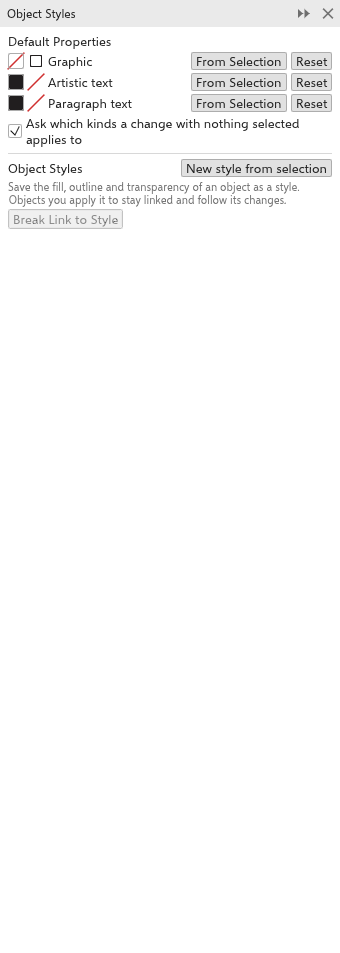
Default properties
New objects take the fill and outline of their kind:
| Kind | In a new drawing |
|---|---|
| Graphic: shapes, lines, tables and everything except text | no fill, a thin black outline |
| Artistic text: text without a frame | black fill, no outline |
| Paragraph text: text in a frame | black fill, no outline |
In the panel, each kind shows its fill and outline, with From Selection (take the fill and outline of the selected object) and Reset (back to the defaults of a new drawing).
Changing defaults with nothing selected
When nothing is selected and you choose a fill or outline (click a palette color, use a fill tool, change the outline color or width), the change goes to new objects. TraceDraw asks which kinds of new objects it applies to:
- Tick Graphic, Artistic text and Paragraph text as needed. The kinds you ticked last time are ticked.
- Tick Use these kinds from now on without asking to skip the question from now on.
- Click OK. Cancel changes nothing.
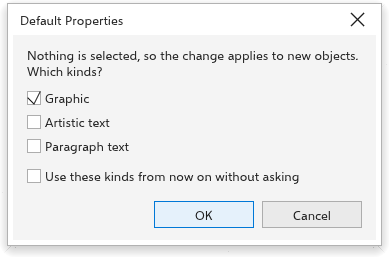
The check box Ask which kinds a change with nothing selected applies to in the panel turns the question on or off. The Properties panel with nothing selected also edits the Graphic defaults. To keep the defaults for every new drawing, choose Tools > Save as Defaults.
Styles
A style is a named set of properties: Fill, Outline (its color, width, line style and arrowheads) and Transparency. Objects you give a style stay linked to it: change the style and they all change.
To make a style
- Select an object with the look you want.
- Click New style from selection.
The style is named "Style 1" and so on, takes the fill, outline and transparency of the object, and is linked to every selected object.
Using and changing styles
Each style shows its swatches, its name (click it to rename), how many objects are linked to it, and its parts as check boxes:
- Apply gives the selection the style and links it.
- Update from selection takes the fill, outline and transparency of the selected object; every linked object follows.
- Turning a part off leaves that property to each object.
- Delete removes the style; linked objects keep their look.
- Break Link to Style unlinks the selected objects, which keep their look.
You can still change a linked object directly; the next change of its style sets the style's parts again. Right-click an object to apply a style from its menu.