
यह पेज अभी अनुवादित नहीं है और अंग्रेज़ी में दिखाया गया है।
Masking colors out of bitmaps
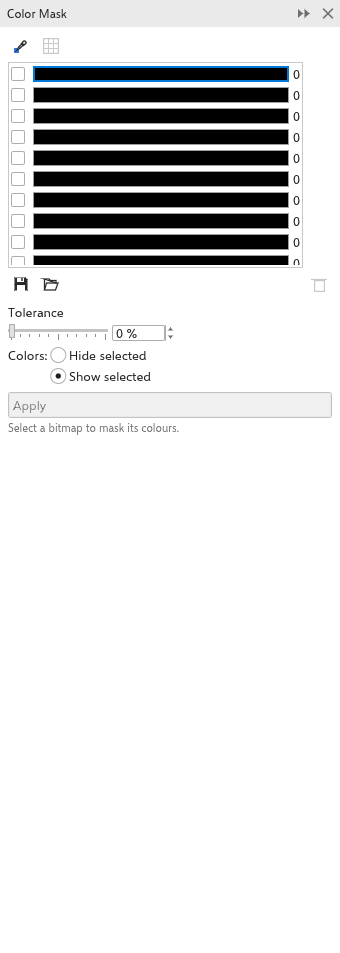
The Color Mask panel hides or keeps the pixels of chosen colors in a bitmap, for example to make a white background transparent. Open it with Image > Color Mask.
To mask colors
- Select a bitmap.
- Pick colors into the ten color slots:
- click the eyedropper and click colors in the bitmap; each fills the selected slot and ticks it;
- or click Select colours from bitmap to fill the slots with the ten colors the bitmap uses most.
- Select a slot and set its tolerance (0 to 100%): how far a pixel's color may be from the slot's color and still match.
- Choose Hide selected (matching pixels become transparent) or Show selected (only matching pixels stay, at first).
- Click Apply.
Save mask and Open mask keep the slots in a .msk file; Delete empties the selected slot. Each bitmap changes in one undo step.